Google Apps Script Examples: 15 Real Business Uses
Google Apps Script is Google's JavaScript platform for automating and extending Google Workspace, and the best examples of it are dull, repetitive business jobs it takes off people's desks: sending follow-up emails from a sheet, generating contracts and invoices from a row, syncing orders from an online store, alerting on low stock, calculating commissions, and booking appointments into Calendar. Below are 15 real uses grouped by department, each with what it typically replaces. Most run free inside a Google account you already have, and none of them needs a monthly automation subscription.
We build these for a living, so this list sticks to patterns that hold up in production rather than toy demos. Where Apps Script runs out of road, we say so at the end.
What Apps Script is, in one sentence
Apps Script is a cloud-based JavaScript environment, built into every Google account, that can read and write Sheets, Docs, Gmail, Drive, Calendar and Forms, call outside APIs, run on a schedule, and publish small web apps. There's nothing to install and no server to pay for. You write code in the browser editor and Google runs it.
Three building blocks show up in almost every example below:
- Services such as
SpreadsheetApp,GmailApp,DocumentApp,DriveAppandCalendarApp, which do the actual work. - Triggers: on edit, on form submit, or on a timer (every hour, every morning at 7).
- UrlFetchApp, which lets a script talk to anything with an API, whether that's an online store, an accounting package or an AI model.
If you want the full production picture (project structure, deployment, error handling), our Apps Script production guide covers it. This post is the catalogue.
The 15 examples at a glance
| # | Example | Department | What it typically replaces |
|---|---|---|---|
| 1 | Lightweight CRM with follow-up reminders | Sales | Entry-level CRM seats |
| 2 | Lead capture and scoring from forms | Sales | Form-to-CRM connector tasks |
| 3 | Commission calculation and statements | Sales | Commission software, manual Excel |
| 4 | Appointment booking into Calendar | Sales / Service | Calendly-style scheduling subscriptions |
| 5 | Stock tracking with low-stock alerts | Operations | Basic inventory apps |
| 6 | Order sync from an online store | Operations | Connector platforms (Zapier, Make) |
| 7 | Approval workflows | Operations | Approval add-ons, email chains |
| 8 | Staff onboarding and offboarding | Operations / IT | Manual admin checklists |
| 9 | Invoice generation and numbering | Finance | Invoicing tools for simple needs |
| 10 | Accounting sync and reconciliation | Finance | Paid sync connectors |
| 11 | Automated reporting and dashboards | Finance / Management | Manual weekly reports |
| 12 | Personalised email from a sheet | Email & documents | Mail-merge add-ons |
| 13 | Contracts and proposals from a row | Email & documents | Document-automation SaaS |
| 14 | Webhooks: receive data from other systems | Integration | Middleware tasks |
| 15 | AI classification, extraction and summaries | AI | Per-seat AI add-ons |
Sales and CRM
1. A lightweight CRM with follow-up reminders. A Google Sheet holds contacts, deal stage and the next follow-up date. A morning trigger finds every row where the follow-up date is today or earlier, emails the owner a digest, and can draft the follow-up email in Gmail for them to review. For a team of three to ten salespeople with a simple pipeline, this covers what an entry-level CRM would. Our Google Sheets CRM template guide shows the sheet structure that keeps it from turning into a mess.
function dailyFollowUps() {
  const rows = SpreadsheetApp.getActive().getSheetByName('Deals')
    .getDataRange().getValues().slice(1);           // skip header
  const today = new Date(); today.setHours(23, 59, 59);
  const due = rows.filter(r => r[5] && r[5] <= today && r[3] !== 'Closed');
  if (!due.length) return;
  const lines = due.map(r => `${r[0]} (${r[1]}), stage: ${r[3]}`);
  GmailApp.sendEmail(Session.getEffectiveUser().getEmail(), // trigger owner
    `${due.length} follow-ups due today`, lines.join('\n'));
}
2. Lead capture and scoring. A Google Form or website form posts to a sheet. On submit, a script scores the lead (budget, company size, how they found you), assigns an owner by territory or round-robin, and emails the owner straight away. Hot leads get a reply in minutes instead of whenever someone checks the sheet. The lead scoring walkthrough has the details.
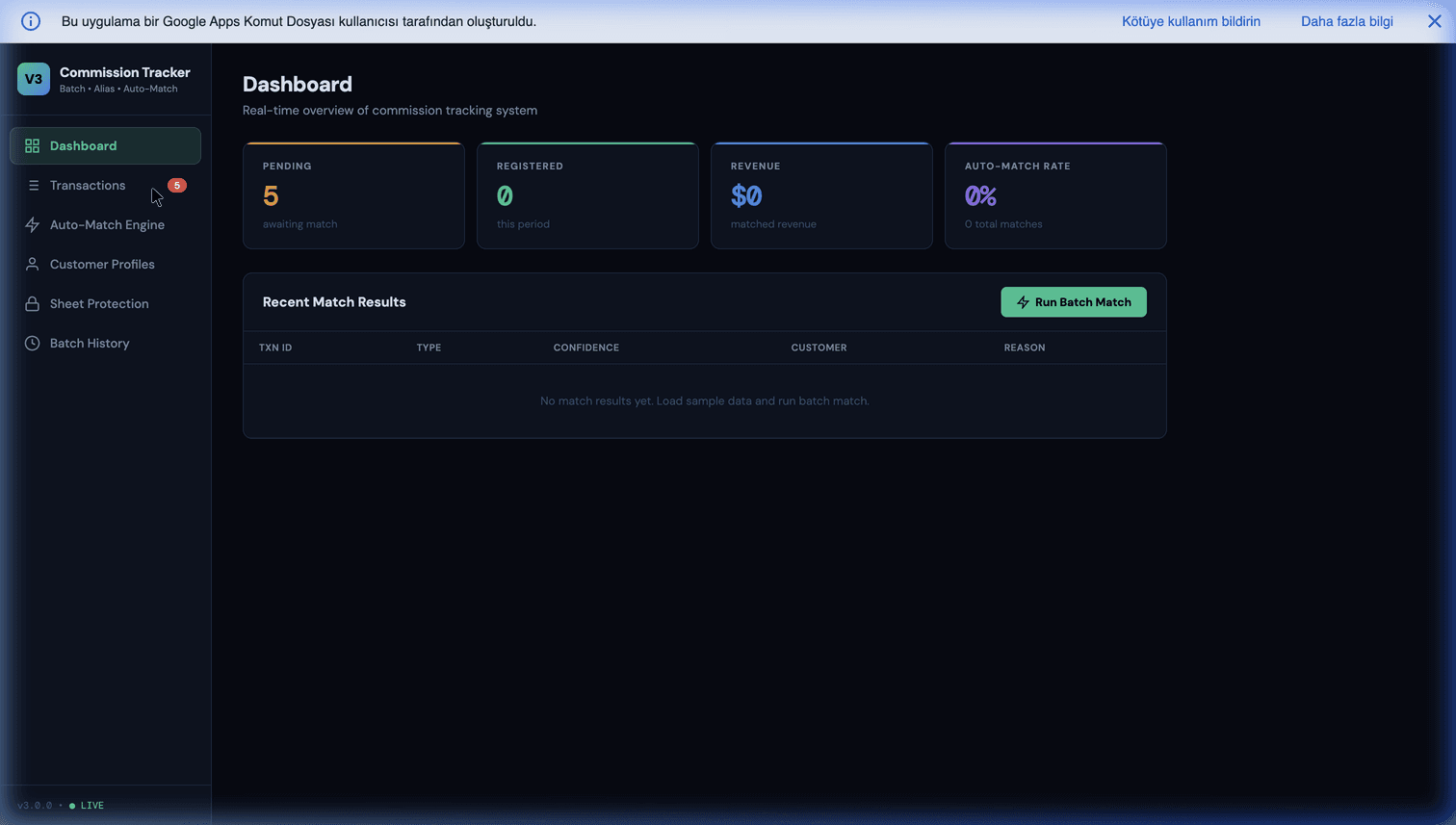
3. Commission calculation and statements. Sales rows go in; a script applies the commission rules (tiers, splits, clawbacks), writes a per-rep summary and emails each rep their own statement as a PDF. This is a good fit because the rules are specific to each business and change every year, which is where generic commission software gets awkward. See our commission tracking guide and the ready-made commission tracker.
4. Appointment booking into Google Calendar. A small Apps Script web app shows free slots read from your calendar, takes a booking, creates the Calendar event (with a Meet link, if you enable the advanced Calendar service) and sends the confirmation. For a single business with its own calendar, this replaces a scheduling subscription. Our Calendly alternative build walks through it, including the double-booking lock.
Operations and inventory
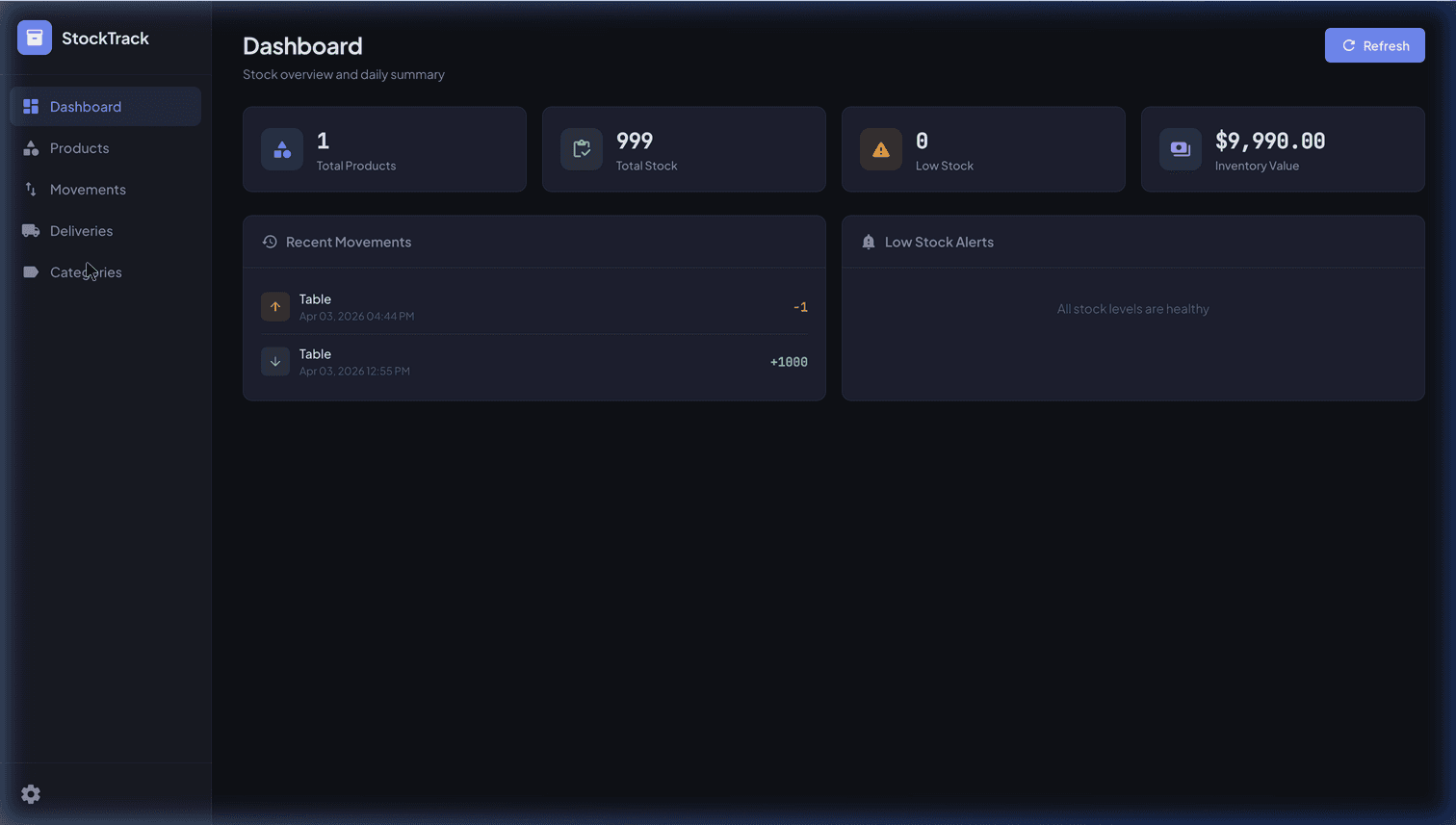
5. Stock tracking with low-stock alerts. Every sale or delivery adjusts a stock sheet through one function, which takes a lock so two simultaneous sales can't both sell the last unit. When an item drops below its reorder point, the script emails purchasing or posts to a chat. Our Google Sheets inventory management guide covers the data model, and automated stockout alerts covers the alerting.
6. Order sync from an online store. A timed trigger pulls new orders from your store's API every 10 or 15 minutes and appends them to a sheet, one row per line item, for fulfilment and reporting. This is the job most commonly rented from connector platforms and billed per task. Our n8n, Zapier and Make vs Apps Script comparison runs the numbers on when owning it beats renting it.
7. Approval workflows. Someone submits a purchase request, leave request or discount approval through a form. The script routes it to the right approver by amount or department, emails them approve/reject links, records the decision and timestamp, and tells the requester. The Google Forms approval workflow post shows the pattern.
8. Staff onboarding and offboarding. A new-hire row triggers a checklist: create the Drive folder from a template, share the right folders, add the person to Calendar events and groups, and email the manager the plan. Offboarding reverses it. Some steps (creating the Workspace user itself) need admin APIs and admin rights. Our onboarding and offboarding automation post explains which parts are safe to automate.
Finance
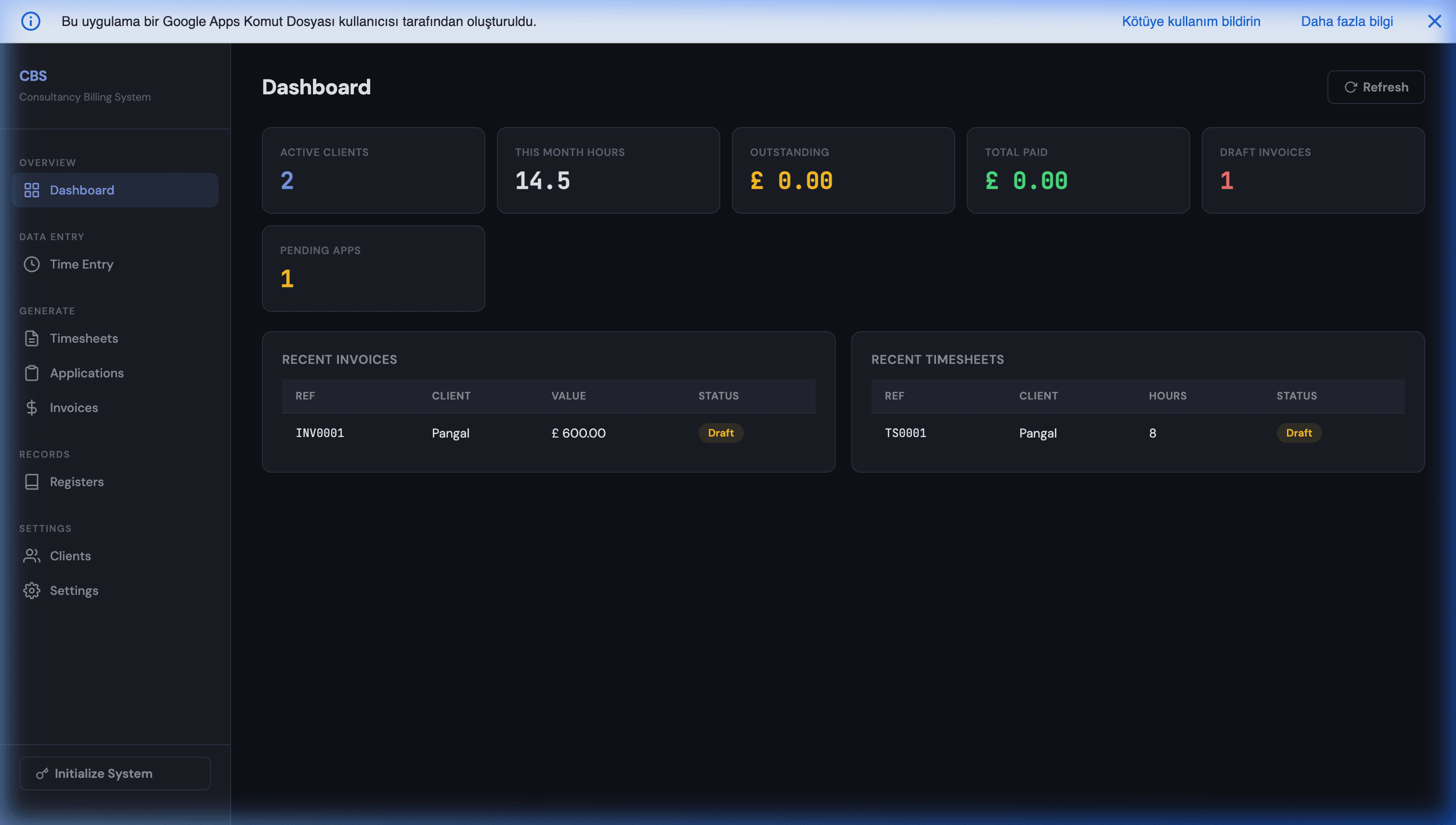
9. Invoice generation and numbering. A row in an "Invoices" sheet becomes a PDF built from a Google Docs template, gets the next sequential number, is filed in the right Drive folder and is emailed to the client. For businesses whose invoicing is simple and doesn't need a full accounting package, this is enough. Our Google Sheets invoice template guide shows the setup, and the consultancy billing system is a finished example.
10. Accounting sync and reconciliation. Scripts can push invoices or pull payments from accounting tools through their APIs, then flag mismatches, such as an invoice marked paid in one system and open in the other. The QuickBooks and Xero sync guide covers the authentication and the edge cases. Plan carefully here: accounting APIs have their own rate limits, and a sync that writes into your books needs logging and a dry-run mode.
11. Automated reporting. A Monday-morning trigger aggregates last week's numbers, writes them into a summary tab and emails management a short report with the three figures that moved. It isn't glamorous, but it is one of the most valuable scripts a business can have, because it ends the weekly hour someone spends copying numbers around. For something more visual, see our business intelligence dashboard in Google Sheets.
Email and documents
12. Personalised email from a sheet. Each row becomes a personalised email: payment reminders, renewal notices, event confirmations. Know the cap: with MailApp, a script can email 100 recipients a day from a personal Gmail account and 1,500 from Workspace. For larger volumes, use a transactional email provider called from the script. Our Google Sheets email integrations overview compares the options.
13. Contracts and proposals from a row. A deal row fills a Google Docs template (client name, scope, price, dates), saves a PDF and sends it out for signature. Document generation is one of Apps Script's strongest areas, because Docs, Drive and Gmail are all native. We cover the full quote-to-signed-contract flow, including Google's built-in eSignature and where it stops, in our guide to generating contracts from Google Sheets.
14. Webhooks: receive data from other systems. Deploy a script as a web app and its doPost function becomes a URL other services can send data to, such as payment notifications, form tools or store events. The script validates the payload and writes it where it belongs. Our Apps Script webhooks guide covers the security side, which matters because the URL is public.
AI
15. AI classification, extraction and summaries. A script sends text from a sheet, an email or a document to an AI model's API and writes back the result: tag a support email by category, pull invoice fields out of free text, summarise a long customer note, draft a reply for a human to approve. The script is free; the model API is billed by the provider per use. The Google Workspace AI automation guide covers the patterns and the guardrails, and Gemini sales analysis in Google Sheets is a worked example.
A practical rule we follow: AI suggests, a script checks, a person approves anything that leaves the building. Models are good at reading messy text and bad at being right every single time.
The limits you should plan around
Apps Script is free, but it isn't unlimited. These are Google's published quotas:
| Limit | Personal Gmail account | Google Workspace account |
|---|---|---|
| Single script run | 6 minutes | 6 minutes |
| Total trigger runtime per day | 90 minutes | 6 hours |
| Email recipients per day (MailApp) | 100 | 1,500 |
| Documents created per day | 250 | 1,500 |
| URL fetch calls per day | 20,000 | 100,000 |
| Simultaneous executions | 30 per user | 30 per user |
| Triggers per user per script | 20 | 20 |
What these mean in practice:
- The 6-minute cap is the one people hit first. Large syncs and bulk document runs need to be split into batches that save their place and resume. Our 6-minute limit guide shows how.
- Silent failures are the real risk. A trigger that stopped running three weeks ago is worse than one that crashes loudly. Every production script should log runs and email someone on failure; see error handling and monitoring.
- A sheet is not a database. For a handful of internal users it's fine. For many outside users with private data, offline phones or heavy concurrent writes, you need a real app. Our post on the signs you've outgrown Google Sheets helps you tell the difference.
- Someone has to own it. Scripts live in a Google account. If that account belongs to a person who leaves, the automation can stop. Run business-critical scripts from a shared or service-owned account.
Build it yourself or have it built?
Examples 1, 11 and 12 are reasonable first projects if someone on your team is comfortable with JavaScript. Examples 6, 10 and 14 involve outside APIs, authentication and money, so they need error handling, logging and a test plan before you rely on them. That's usually where a few days of specialist work pays for itself.
On cost, the comparison is simple: a connector platform or SaaS tool charges every month for as long as you use it, and the price grows with tasks or seats. A script is built once and runs inside your Google account with no per-run fee. Our Apps Script pricing breakdown works through the arithmetic. Sometimes a $20-a-month tool really is the better answer, and we'll say so when it is. If you're choosing between code and no-code, the AppSheet vs Apps Script comparison helps.
Want one of these built for your business?
Most businesses have two or three of these jobs eating hours every week. The useful first step is to name them.
- Book a free 30-minute discovery call. Walk us through the repetitive work, and we'll tell you which parts Apps Script can take over, which parts it shouldn't, and what a fixed-scope build would involve.
- Prefer to write? Send us a message describing the process in a few lines. We'll reply with how we'd approach it.
You can also see how we scope this work on our Google Apps Script development service page.
Frequently Asked Questions
Is Google Apps Script free?
Yes. Apps Script is included with every Google account, including a free Gmail account, and there is no separate licence or per-run fee. What changes between account types is the daily quota. On a personal Gmail account a script can send email to 100 recipients a day and create 250 documents a day, and triggers get 90 minutes of total runtime per day. On a Google Workspace account those figures are 1,500 recipients, 1,500 documents and 6 hours. Every single run is capped at 6 minutes on both. Costs only appear if your script calls a paid outside service, such as an AI model API or an SMS gateway.
Which programming language does Apps Script use?
JavaScript. Google describes Apps Script as a platform where you write code in modern JavaScript, with built-in libraries for Sheets, Docs, Gmail, Drive, Calendar and Forms. If you have written JavaScript for a website you can read Apps Script immediately. The differences are the environment: there is no browser DOM, code runs on Google's servers, and you call services like SpreadsheetApp or GmailApp instead of npm packages.
What is the difference between Apps Script and AppSheet?
AppSheet is Google's no-code app builder: you point it at a sheet and configure screens, forms and simple automations without writing code, and it is licensed per user (a Core tier is included in many Google Workspace plans). Apps Script is code: it has no visual builder, but it can do almost anything inside Google Workspace and talk to outside APIs, and it is free to run. A common split is AppSheet for a quick internal data-entry app, and Apps Script for automation logic, document generation, integrations and custom web apps. Our AppSheet vs Apps Script comparison goes through the trade-offs in detail.
Can Apps Script connect to software outside Google?
Yes, through UrlFetchApp, which makes HTTP requests to any public API. That covers most accounting tools, e-commerce platforms, payment providers, messaging services and AI models. A script can also receive data through a deployed web app that acts as a webhook endpoint. The limits to plan for are the daily URL fetch quota (20,000 calls on a Gmail account, 100,000 on Workspace) and the 6-minute cap on each run, which matters for large syncs.
When is Apps Script the wrong tool?
When the job needs to run continuously or in real time at high volume, when many outside users need their own logins and private data, when work has to happen offline on phones, or when one run genuinely needs more than 6 minutes and can't be split. In those cases a proper database-backed app or a dedicated service is the better fit. Apps Script is strongest for internal business workflows that already live in Google Sheets, Gmail, Docs and Drive.