Apps Script Error Handling, Logging & Alerts
The most expensive Apps Script bug is the one that throws no error. A script that crashes loudly gets fixed the same afternoon. A script that quietly stops syncing — because a trigger was disabled, an API key rotated, or a catch block swallowed the exception and returned early — gets discovered weeks later, usually by a customer or an accountant.
Silent failures tend to take one of three shapes. An order sync that has not written a row in eleven days because an API filter stopped matching. A nightly invoice mailer that has thrown since a Gmail quota spike. A commission sheet that went two weeks stale before anyone thought to check it. In none of them is the code obviously broken — what is missing is the fifty lines that tell a human when something stops.
That is the honest difference between a paid SaaS tool and an automation you own. When Zapier's task fails, Zapier emails you — you are paying partly for that email. When your own Apps Script fails, the person who emails you is you. It is not hard work, and it is not ongoing work. It is a wrapper, a log sheet, an alert function and a heartbeat, written once and reused across every job in the project.
This guide is about that layer specifically: how you find out, how you diagnose, and how you avoid losing data quietly. It deliberately does not cover the six-minute execution limit (long-running job patterns live here) or HTTP retry strategy (UrlFetchApp retries and rate limiting live here).
What try/catch actually catches in Apps Script
try/catch in Apps Script is ordinary JavaScript and behaves as you expect for ordinary errors: a TypeError on an undefined property, a JSON.parse on a malformed response, an explicit throw. It also catches the exceptions Google's own services raise — SpreadsheetApp permission errors, UrlFetchApp network failures, MailApp quota exhaustion.
What it does not catch matters more:
- The execution timeout. When Apps Script hits the six-minute cap, the invocation is terminated by the platform. Your
catchdoes not run. Critically, neither does yourfinally, so a "flush my log buffer at the end" pattern loses everything the run had buffered. - A trigger that never fired. There is no exception when a trigger is disabled, deleted, or silently skipped. There is simply no execution.
- Non-2xx HTTP responses, when you asked for it. With
muteHttpExceptions: true— which you need for sane retries — a 500 comes back as a response object, not a throw. Yourtryblock sees success. You have to checkgetResponseCode()yourself. - Logical failure. A sync that runs perfectly and writes zero rows because a
searchCriteriafilter no longer matches anything throws nothing at all. This is the category that costs the most money, and only an assertion catches it.
That last one deserves a habit: after any job whose output you can predict, assert on the output.
const written = writeOrders(orders);
if (written === 0 && expectedNonZero()) {
  throw new Error('order sync wrote 0 rows — filter or credentials likely broken');
}
A deliberate throw is cheaper than a silent zero.
Why trigger code is a different animal
When you run a function from the Apps Script editor, you see the stack trace immediately. When the same function runs on a time-driven trigger at 3 a.m., nobody is looking at the editor. The failure goes into the Executions list and stays there until the log window rolls over.
Google does give you one free safety net, and it is worth understanding precisely. When a function invoked by an installable trigger throws an uncaught exception, Apps Script emails the trigger owner from noreply-apps-scripts-notifications@google.com with the subject "Summary of failures for Google Apps Script". You can change the frequency — including "notify me immediately" — in the trigger's failure notification settings.
Three caveats that make this net leakier than it looks:
- It only fires on uncaught exceptions. If you wrap your whole job in
try { ... } catch (e) { console.error(e) }, Google records a successful execution and sends nothing. Defensive coding silences your own alarm. - Add-on installable triggers do not send it. If your code ships as an add-on, this is entirely your problem.
- Simple triggers get nothing — and cannot send email themselves either, because
onEdit(e)andonOpen(e)run without authorization for services likeMailApp. Google also documents that they cannot run longer than 30 seconds. If an edit-driven workflow matters, use an installableonEdittrigger instead.
Web app entry points are a fourth blind spot. A doPost handler that throws does not send you a failure email either — the exception becomes an HTTP error the caller sees, and the caller is a third-party webhook that will quietly stop retrying. If you receive webhooks into Sheets via doPost, wrap the handler so it always returns 200 after writing the raw payload, and do the risky work in a separate triggered function where the patterns in this guide apply.
There is also a question the documentation does not answer: whether Google eventually disables a trigger that fails consistently for a long stretch. Scattered user reports describe triggers found in a disabled state after long failure streaks, but Google publishes no rule either way — so design as though both were possible. The heartbeat pattern below covers you regardless.
The wrapper every job should go through
One function, reused by every entry point in the project. It logs, alerts, records a heartbeat, and — importantly — re-throws so Google's own failure email and the Executions dashboard still see the failure.
const JOB = 'magento_order_sync';

function syncOrders() {
  runGuarded(JOB, () => {
    const cursor = loadCursor();
    const orders = fetchOrdersSince(cursor);
    log('info', JOB, `fetched ${orders.length} orders since ${cursor}`);

    const written = writeOrders(orders);
    if (orders.length > 0 && written === 0) {
      throw new Error('fetched orders but wrote none');
    }
    saveCursor(orders);
  });
}

function runGuarded(job, fn) {
  const startedAt = Date.now();
  const runId = Utilities.getUuid().slice(0, 8);
  console.log(`[${job}] run ${runId} starting`);

  try {
    fn();
    recordRun(job, runId, 'ok', Date.now() - startedAt, '');
  } catch (err) {
    const detail = err.stack || String(err.message || err);
    recordRun(job, runId, 'error', Date.now() - startedAt, detail);
    console.error(`[${job}] run ${runId} failed: ${detail}`);
    alertOnce(job, err);
    throw err; // keep Google's failure email and the dashboard honest
  }
}
The throw err at the end is the line people delete first and regret most. Catching an error to log it and then swallowing it turns your monitoring off at the source.
Three logging layers, and when each earns its place
| Layer | Lives for | Who can read it | Cost | Use it for |
|---|---|---|---|---|
Execution log (console.log) | A short rolling window — days | You, in the editor | Free | Live debugging while you build |
| Cloud Logging | 30 days in the _Default bucket | Whoever has the Cloud project | Free to 50 GiB/project/month, then ~$0.50/GiB | Filtering and forensics across runs |
| A Google Sheet | As long as you keep it | Anyone on the team | Free | Run history, audit trail, business questions |
A few practical notes on each.
Prefer console.log and console.error over Logger.log. console.* is the path Google documents for reaching Cloud Logging, and on the legacy Rhino runtime the Logger service does not reach Cloud Logging at all. Use console.error for anything you would want to find later — it is what Error Reporting aggregates on.
Cloud Logging has a prerequisite nobody mentions. By default your script sits on a default Cloud project you cannot open in the Google Cloud console. You get a simplified view in the Apps Script dashboard and nothing else. To use Cloud Logging's real filtering, or Error Reporting's grouped stack traces, you must attach a standard Cloud project to the script (Project Settings → Google Cloud Platform project). While you are in Project Settings, turn on "Log uncaught exceptions to Cloud Operations" — Error Reporting itself is free, and it turns a hundred scattered stack traces into five distinct problems.
The cost trap is chattiness, not volume. 50 GiB per month is enormous for Apps Script. A retry storm logging the same 2 KB stack trace 200,000 times is not. Log per batch, not per record. If your logging is proportional to rows processed, cap it.
The Sheet layer is the one business owners actually use. It is also the one that survives. A run_log tab with timestamp, level, job, message and a JSON context column answers "when did this last work?" in five seconds, for anyone, with no Cloud console access.
const LOG_SHEET_ID = 'PUT_ID_HERE';
const _buffer = [];

function log(level, job, message, context) {
  console.log(`[${level}] ${job}: ${message}`);
  _buffer.push([new Date(), level, job, message, context ? JSON.stringify(context) : '']);
  if (_buffer.length >= 50) flushLog();
}

function flushLog() {
  if (_buffer.length === 0) return;
  const lock = LockService.getScriptLock();
  if (!lock.tryLock(10000)) {
    console.error(`log flush could not acquire lock; ${_buffer.length} rows still buffered`);
    return;
  }
  try {
    const sheet = SpreadsheetApp.openById(LOG_SHEET_ID).getSheetByName('run_log');
    sheet.getRange(sheet.getLastRow() + 1, 1, _buffer.length, 5).setValues(_buffer);
    _buffer.length = 0;
  } finally {
    lock.releaseLock();
  }
}
Buffering exists because appendRow per line is slow and will dominate your runtime on a chatty job. But buffering has a real cost: anything still in _buffer when the six-minute timeout kills the invocation is gone, because finally does not run on a platform kill. So call flushLog() at the end of every chunk of work, not once at the end of the run. That is the whole trade-off, stated honestly.
Alerting yourself without becoming your own spammer
An alert that fires 400 times gets filtered to a folder within a day, and then you have no alerting at all. Two guards make email alerts sustainable: fingerprint deduplication and a quota check.
const ALERT_TO = 'ops@example.com';

function alertOnce(job, err) {
  const message = String(err.message || err).slice(0, 120);
  const cache = CacheService.getScriptCache();
  const fingerprint = 'alert:' + job + ':' + Utilities.base64EncodeWebSafe(message);

  if (cache.get(fingerprint)) return;          // same error already alerted this hour
  cache.put(fingerprint, '1', 3600);           // CacheService max TTL is 6 hours

  if (MailApp.getRemainingDailyQuota() < 5) {
    console.error('alert suppressed: Gmail quota nearly exhausted');
    return;
  }

  MailApp.sendEmail({
    to: ALERT_TO,
    subject: `[${job}] failed: ${message.slice(0, 70)}`,
    body: [
      `Job: ${job}`,
      `Time: ${new Date().toISOString()}`,
      '',
      err.stack || message,
      '',
      'Run log: https://docs.google.com/spreadsheets/d/' + LOG_SHEET_ID
    ].join('\n')
  });
}
The quota check is not paranoia. Alert emails come out of the same daily Gmail allowance as the rest of your automation — 100 recipients per day on a consumer account, 1,500 on Workspace — so an error loop can consume the quota your invoices need. Deduplicate first, then check what is left, then send.
For alerts somebody has to see within minutes, WhatsApp beats email. A Twilio or Cloud API call from inside alertOnce is a dozen extra lines and does not touch your Gmail quota at all; the WhatsApp CRM guide covers the outbound side. Keep email as the fallback so a broken WhatsApp provider does not silence you too.
We build this layer — wrapper, run log, alerts and watchdog — as one fixed-scope piece of work rather than a retainer. If you already have an automation running that tells you nothing, that is a cheap thing to retrofit and the feasibility review is free.
The heartbeat: catching the failures that produce no error
This is the pattern that catches all three of the silent failures at the top of this post, and it is the one almost nobody builds.
try/catch needs an exception. A disabled trigger, a deleted trigger, a trigger that exhausted the daily runtime budget, a project whose OAuth grant was revoked — none of these throw anything, because no code runs. The only way to detect absence is to expect presence.
Every successful run writes a timestamp. A separate watchdog checks the timestamps.
function recordRun(job, runId, status, ms, detail) {
  PropertiesService.getScriptProperties().setProperty(
    'heartbeat:' + job,
    JSON.stringify({ runId, status, at: new Date().toISOString(), ms })
  );
  log(status === 'ok' ? 'info' : 'error', job, `run ${runId} ${status}`, { ms, detail: detail.slice(0, 500) });
  flushLog(); // never leave the outcome of a run buffered in memory
}

// How often each job is supposed to succeed, in minutes.
const EXPECTED_EVERY_MIN = {
  magento_order_sync: 60,
  invoice_mailer: 1440,
  commission_rollup: 1440
};

function watchdog() {
  const props = PropertiesService.getScriptProperties();
  const problems = [];

  Object.keys(EXPECTED_EVERY_MIN).forEach(job => {
    const raw = props.getProperty('heartbeat:' + job);
    if (!raw) { problems.push(`${job}: no successful run ever recorded`); return; }

    const beat = JSON.parse(raw);
    const ageMin = Math.round((Date.now() - new Date(beat.at).getTime()) / 60000);
    const allowed = EXPECTED_EVERY_MIN[job] * 2; // one missed cycle is noise, two is a signal

    if (ageMin > allowed) {
      problems.push(`${job}: last run ${ageMin} min ago, expected every ${EXPECTED_EVERY_MIN[job]}`);
    } else if (beat.status !== 'ok') {
      problems.push(`${job}: ran ${ageMin} min ago but errored`);
    }
  });

  if (problems.length > 0) {
    MailApp.sendEmail(
      ALERT_TO,
      `Automation watchdog: ${problems.length} job(s) need attention`,
      problems.join('\n')
    );
  }
}
One honest limitation, and it is the important one: a watchdog inside the project it watches shares the project's failure domain. If the whole script project loses authorization or the trigger quota is exhausted, the watchdog is dead too, and silence looks exactly like health. The fix is boring and effective — put watchdog() in a second, separate Apps Script project that reads the heartbeats from a shared Sheet instead of script properties. Two independent projects rarely break the same night.
If you want the strongest version of this, have the watchdog also send a weekly "everything is fine" email. An alert channel you never hear from is indistinguishable from a broken one; a heartbeat you receive proves the alerting path itself still works.
Partial failure and idempotency: don't corrupt data while failing
A job that dies halfway is only dangerous if re-running it duplicates work. Make every side effect keyed and check the key first.
function processOnce(key, fn) {
  const lock = LockService.getScriptLock();
  lock.waitLock(30000);
  try {
    const ledger = SpreadsheetApp.openById(LOG_SHEET_ID).getSheetByName('ledger');
    const seen = ledger.getRange(1, 1, Math.max(ledger.getLastRow(), 1), 2).getValues();
    if (seen.some(r => r[1] === key)) return { skipped: true };

    ledger.appendRow([new Date(), key, 'in_progress']);
    const rowIndex = ledger.getLastRow();

    const result = fn();

    ledger.getRange(rowIndex, 3).setValue('done');
    return { skipped: false, result };
  } finally {
    lock.releaseLock();
  }
}

// Usage: the key encodes the logical operation, not the attempt.
processOnce('invoice:' + order.increment_id, () => sendInvoice(order));
Two details do the work here. The lock stops two concurrent invocations from both deciding the key is unseen. The in_progress → done transition is what lets you distinguish three states later: never attempted, attempted and finished, and attempted but unknown. That third state is the one you want visible. A row stuck at in_progress for two hours is a manual-review item, and knowing about it beats a re-send that charges a customer twice.
For anything money-moving, pair this with the upstream provider's own idempotency key — Stripe's Idempotency-Key, Twilio's request UUID — so a retry that succeeded on their side after failing on yours does not double-charge. The UrlFetchApp retries guide goes into that layer properly.
Note that this reads the whole key column on every call, so the cost grows with the ledger. As a rough rule of thumb a linear scan stays comfortably fast into the low tens of thousands of rows — measure your own case rather than trusting a specific number. Once it starts to bite, keep a CacheService set of recent keys in front of it, or shard the ledger by month. Related state-management patterns — cursors, tokens, session data — are covered in the Apps Script auth and state guide.
The audit trail is a business asset, not an engineering one
Once you have a run_log and a ledger, you own something a rented tool rarely gives you: a complete, queryable record of what your automation did, in a Sheet your team can read without a login to anything.
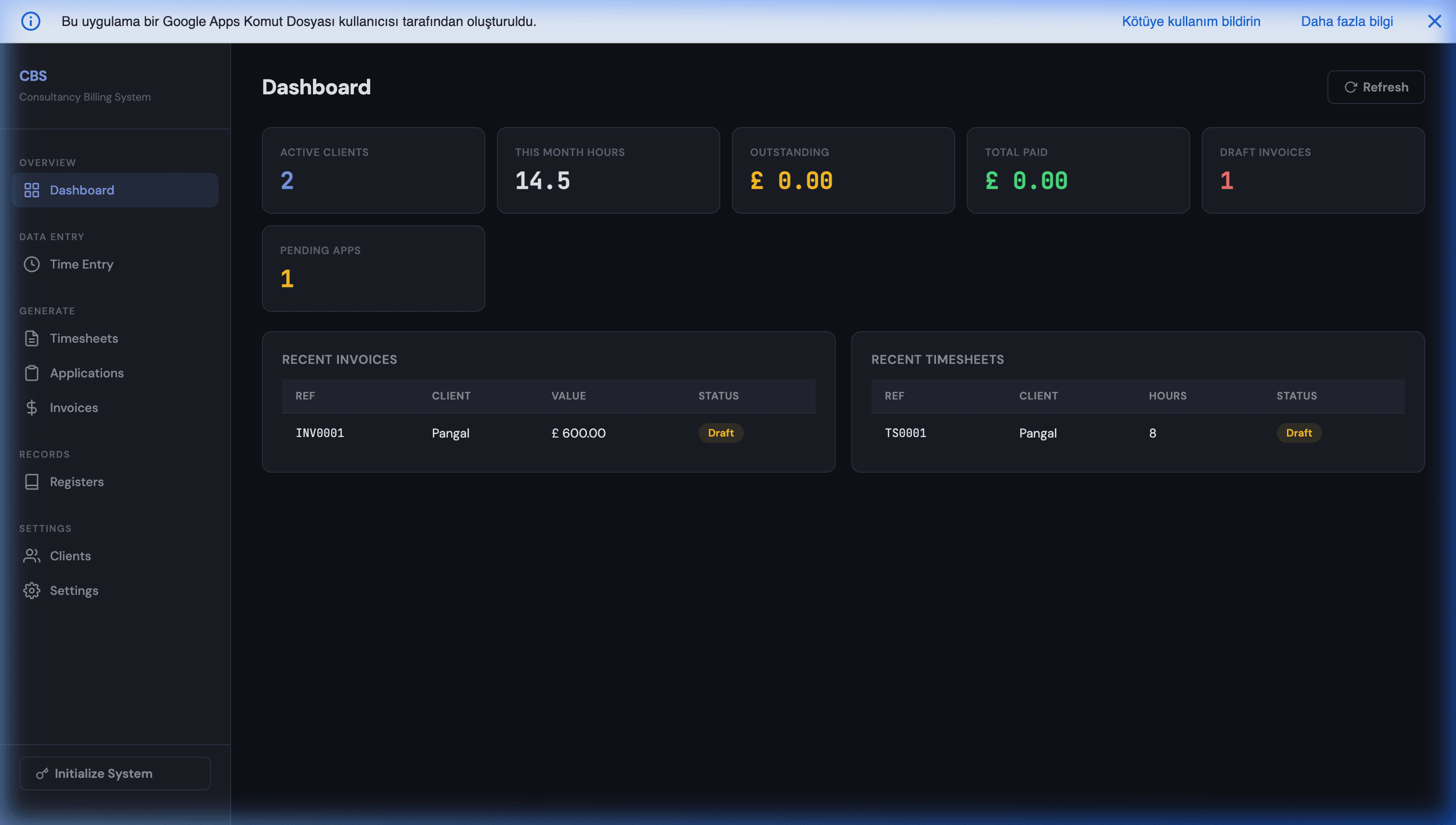
This turns out to matter more than the debugging. A dispute over whether an invoice was sent on the 3rd is answered by a row, not by a memory. It is the same reasoning behind the exportable, auditable record of every logged hour and issued invoice in our consultancy billing system: the record is the product, the automation is just what fills it. A reconciliation question about which orders synced last quarter is a filter, not a support ticket. When a new person takes over the process, the log is the documentation. And when you compare this against the automation platforms that charge monthly — the comparison we lay out in n8n vs Apps Script — note that history depth is usually a plan tier there. Here it is a tab.
Keep the log honest with one weekly trigger: archive rows older than 60 days to an archive tab, and email a one-paragraph digest — runs, success rate, top three error messages. Five minutes of reading a week is what keeps the whole layer alive.
What this costs, and what it does not fix
The layer above is roughly 150 lines, runs inside quotas you already have, and adds no recurring cost — the full picture on Apps Script running costs is in our pricing breakdown. Where you should be sceptical:
- It will not give you real observability dashboards. No percentile latencies, no alert routing, no on-call rotation. If you need PagerDuty-grade operations, Apps Script is the wrong runtime and you should be on Cloud Run.
- Google's own tooling is thin. No native alert rules on Apps Script metrics, no documented retention for the Executions list, and no log access in the Cloud console until you attach a standard Cloud project.
- Buffered logs die with the timeout. Mitigated by flushing per chunk, never eliminated.
- The watchdog is only as independent as you make it. In the same project, it is a comfort, not a guarantee.
- You still have to read something. A daily digest nobody opens is the same as no monitoring. The weekly ten minutes is the actual requirement.
None of that argues against owning the automation. It argues for owning it with the alarm wired up — which is the difference between an asset and a liability. Testing catches the failures you anticipated; the Apps Script unit testing guide covers that half. This layer catches the ones you did not.
Retrofitting this onto a script you already have
If you have an Apps Script automation running in production that has never told you anything — no run log, no alerts, no way to answer "did it work last Tuesday?" — retrofitting this layer is usually a small, fixed-scope piece of work, and it is the highest-value thing you can add to a script that already works.
Two low-pressure ways to start:
- Book a free 30-minute discovery call and we will look at what you have running and tell you where the silent failure risk actually is.
- Message us on WhatsApp with what your script does and how you would find out today if it stopped.
Either way you will get a straight answer, including "your current setup is fine, just add the heartbeat" if that is the truth. The review is free and there is no funnel behind it.
Frequently Asked Questions
Why doesn't my try/catch catch the 'Exceeded maximum execution time' error?
Because the six-minute cap is enforced by the platform, not raised as a JavaScript exception you can intercept. When the limit hits, the invocation is terminated — your catch block does not run, and neither does your finally block, so anything you were relying on for cleanup or for flushing buffered logs never happens. Treat the timeout as uncatchable and defend against it structurally instead: check elapsed time inside your loop, persist a cursor before you run out of budget, and flush any in-memory log buffer after every chunk rather than at the end of the run. Our long-running jobs guide covers the self-rescheduling pattern that makes this survivable.
How long does Apps Script keep my execution logs?
The built-in execution log in the Apps Script editor is described by Google as persisting only for a short time, and the dashboard graphs cover the last seven days — but Google does not publish an exact retention number for the Executions list itself, so do not build a process that assumes any specific window. In practice it is days, not weeks, and it is gone long before a quarterly audit or a customer dispute arrives. If you need history you can point at later, write your own run log to a Sheet or send structured logs to Cloud Logging, where the default _Default bucket retains entries for thirty days.
Does Cloud Logging cost money for an Apps Script project?
Almost never at Apps Script volumes, but it is not unconditionally free. Google Cloud gives each project 50 GiB of log ingestion per month at no charge, then bills roughly $0.50 per GiB beyond that. Logs held for the default thirty days in the _Default bucket carry no separate storage charge; extending retention past thirty days costs about $0.01 per GiB per month. A script logging a few thousand lines a day will not come close to 50 GiB. What does get expensive is a chatty loop logging every row of a 100,000-row sync, or a retry storm logging the same failure thousands of times — so log per batch, not per record. Cloud Error Reporting itself is free; only the underlying log storage can bill.
Will Google email me automatically when a time-driven trigger fails?
Yes, for installable triggers. When a function run by an installable trigger throws an uncaught exception, Apps Script emails the trigger's owner from noreply-apps-scripts-notifications@google.com with the subject 'Summary of failures for Google Apps Script', including a link to reconfigure or deactivate the trigger. You can set the frequency per trigger in the trigger UI, including immediate notification. Two important gaps: installable triggers created by add-ons do not send these emails, and the notification only fires when an exception escapes your code — if you wrap everything in a try/catch and swallow the error, Google sees a successful run and stays silent. That is why the wrapper in this guide re-throws after logging.
How do I get alerted when a trigger doesn't run at all?
No amount of try/catch helps here, because there is nothing to catch — a disabled, deleted or never-fired trigger produces no execution and no error. The fix is a heartbeat: every successful run writes a timestamp to script properties, and a separate watchdog function checks whether each job's last heartbeat is older than its expected interval. If the order sync should run hourly and its last heartbeat is nine hours old, you get an email. Put the watchdog in a second, separate script project so it does not share a failure domain with the job it is watching — a watchdog inside the broken project is broken too.
Can an onEdit simple trigger send me an error alert?
No. Simple triggers such as onEdit(e) and onOpen(e) run in a restricted context that cannot call services requiring authorization, and that includes MailApp and GmailApp — so a simple trigger literally cannot email you when it fails. Google also documents that they cannot run longer than 30 seconds, and they do not generate Google's failure notification emails. If you need error visibility on an edit-driven workflow, convert it to an installable onEdit trigger created through ScriptApp.newTrigger or the trigger UI. It runs under the installing account's authorization, can send mail, and is covered by Google's failure notifications.