Automatic Payment Reminders in Google Sheets (Free Script)
You can build automatic payment reminders in Google Sheets for free with three parts: a receivables tab that calculates status and days overdue with formulas, a daily Apps Script trigger that finds unpaid invoices past their due date, and a log column that records which reminder each invoice has already received. Below are the columns, the formulas, a working script that sends polite reminders at 3, 7 and 14 days overdue, and an honest account of when the sheet stops being the right tool.
This post is about chasing money you are owed. If you still need to create the invoices themselves, start with our guide to a Google Sheets invoice template and come back.
The receivables tab: columns that do the work
Create a tab called Receivables with one row per invoice and these columns:
| Col | Header | Example | Filled by |
|---|---|---|---|
| A | Invoice no | INV-2026-0042 | You |
| B | Client | Northside Studio | You |
| C | Client email | accounts@example.com | You |
| D | Amount | 1,250.00 | You |
| E | Due date | 2026-11-15 | You |
| F | Paid date | (blank until paid) | You |
| G | Status | Open / Overdue / Paid | Formula |
| H | Days overdue | 0, 5, 12... | Formula |
| I | Last reminder | 0, 3, 7, 14 | Script |
The only rule for the humans: when money arrives, type the date in column F. Everything else follows.
The formulas
Put these in row 2 and fill down.
Status (G2):
=IF(F2<>"","Paid",IF(E2<TODAY(),"Overdue","Open"))
Days overdue (H2):
=IF(G2="Overdue",TODAY()-E2,0)
Total outstanding (anywhere, for example in a summary cell):
=SUMIFS(D2:D,F2:F,"")
Overdue total only:
=SUMIFS(D2:D,G2:G,"Overdue")
A simple ageing view (how much is 1-30, 31-60, 61+ days late):
=SUMIFS(D2:D,H2:H,">=1",H2:H,"<=30")
=SUMIFS(D2:D,H2:H,">=31",H2:H,"<=60")
=SUMIFS(D2:D,H2:H,">=61")
Two checks before you rely on these. The due date column must hold real dates (they right-align by default), because text that merely looks like a date breaks both the formulas and the script. And if your spreadsheet locale uses semicolons as argument separators (many European locales do), replace the commas in the formulas with semicolons.
Finish with conditional formatting: select A2:I, choose Format → Conditional formatting → Custom formula, and use =$G2="Overdue" with a light red fill, and =$G2="Paid" with grey text. At this point you have a usable receivables tracker without a line of code. If you are happy checking it each morning, you can stop here.
Adding reminders with Apps Script
Open Extensions → Apps Script and paste this. It sends one reminder per invoice per stage, and logs the stage it sent in column I.
const SHEET_NAME = 'Receivables';
const STAGES = [14, 7, 3];            // checked highest first
const BUSINESS_NAME = 'Your Business';
const REPLY_TO = 'accounts@yourdomain.com';
const CURRENCY = 'USD';

// Whole calendar days in the spreadsheet's time zone, so midnight
// and daylight-saving shifts cannot move a date by one day.
function dayNumber_(date, tz) {
  const [y, m, d] = Utilities.formatDate(date, tz, 'yyyy-MM-dd').split('-').map(Number);
  return Date.UTC(y, m - 1, d) / 86400000;
}

function sendOverdueReminders() {
  const ss = SpreadsheetApp.getActive();
  const sheet = ss.getSheetByName(SHEET_NAME);
  const rows = sheet.getDataRange().getValues();
  const tz = ss.getSpreadsheetTimeZone();
  const todayNum = dayNumber_(new Date(), tz);

  for (let i = 1; i < rows.length; i++) {
    const [invoice, client, email, amount, due, paid, , , lastSent] = rows[i];

    if (!invoice || !email || paid || !(due instanceof Date)) continue;

    const daysOverdue = todayNum - dayNumber_(due, tz);
    if (daysOverdue < STAGES[STAGES.length - 1]) continue;

    // Highest stage reached, e.g. 9 days overdue -> stage 7
    const stage = STAGES.find(s => daysOverdue >= s);
    if (stage <= (Number(lastSent) || 0)) continue;   // already sent

    if (MailApp.getRemainingDailyQuota() < 1) {
      console.warn('Daily email quota reached; resuming tomorrow.');
      break;
    }

    const dueText = Utilities.formatDate(due, tz, 'd MMM yyyy');
    const { subject, body } = buildMessage_(stage, {
      client, invoice, amount, dueText, daysOverdue
    });

    GmailApp.sendEmail(email, subject, body, {
      name: BUSINESS_NAME,
      replyTo: REPLY_TO
    });

    sheet.getRange(i + 1, 9).setValue(stage);   // log column I
  }
}

function buildMessage_(stage, d) {
  const amount = `${CURRENCY} ${Number(d.amount).toFixed(2)}`;
  const sign = `\n\nKind regards,\n${BUSINESS_NAME}`;

  if (stage === 3) {
    return {
      subject: `Friendly reminder: invoice ${d.invoice}`,
      body: `Hi ${d.client},\n\nA quick note that invoice ${d.invoice} for ${amount} was due on ${d.dueText}. If it has already been paid, thank you and please ignore this message.${sign}`
    };
  }
  if (stage === 7) {
    return {
      subject: `Invoice ${d.invoice} is now ${d.daysOverdue} days overdue`,
      body: `Hi ${d.client},\n\nInvoice ${d.invoice} for ${amount} (due ${d.dueText}) still shows as unpaid on our side. Could you let us know when we can expect payment, or whether anything is holding it up?${sign}`
    };
  }
  return {
    subject: `Second notice: invoice ${d.invoice} overdue`,
    body: `Hi ${d.client},\n\nInvoice ${d.invoice} for ${amount} is now ${d.daysOverdue} days past its due date of ${d.dueText}. Please arrange payment this week, or reply so we can agree a date. If there is a problem with the invoice, tell us and we will sort it out straight away.${sign}`
  };
}

// Run once. Schedules a daily run between 9 and 10am in the script's time zone
// (Project Settings). Safe to re-run: it removes the old trigger first.
function installDailyTrigger() {
  ScriptApp.getProjectTriggers()
    .filter(t => t.getHandlerFunction() === 'sendOverdueReminders')
    .forEach(t => ScriptApp.deleteTrigger(t));

  ScriptApp.newTrigger('sendOverdueReminders')
    .timeBased()
    .everyDays(1)
    .atHour(9)
    .create();
}
How to start it: run installDailyTrigger once and approve the permissions. After that the script runs every morning without you. Google says a time-driven trigger set for 9am may run at any point between 9 and 10, and keeps roughly the same slot each day. The trigger belongs to the account that installed it, so the emails are sent from that account. Test first by temporarily lowering a due date so one row qualifies and pointing its email at yourself. More on trigger behaviour in our Apps Script triggers guide.
Why the log column matters
Without column I, the script would email the same client every day. With it, each invoice receives at most one message per stage, and if the trigger fails for a few days, the script catches up with the highest stage reached rather than sending three emails in a row. It also gives you an audit trail: you can see at a glance which invoices have been chased and how far.
When an invoice is marked paid, the script ignores it, so there is nothing to switch off.
Reminder tone: what to say at each stage
The wording matters as much as the timing. A reasonable progression:
- Day 3, the nudge. Assume an oversight. "If it has already been paid, thank you." Most late payments are simply forgotten.
- Day 7, the question. Ask for a payment date or whether something is blocking it. This invites a reply and often surfaces a dispute you need to know about anyway.
- Day 14, the clear request. Polite and specific: a date, a way to respond, an offer to fix problems. Do not threaten in an automated email; if it reaches this stage, a personal call or message is usually better than a fourth template.
Adjust the stages in the STAGES array to match your payment terms. These intervals are examples, not a rule from any standard.
Limits to know about
We checked Google's published Apps Script quotas before writing this:
- Email recipients per day: 100 for consumer accounts (gmail.com), 1,500 for Google Workspace accounts.
- Script runtime: 6 minutes per execution for both account types, plus a daily total trigger runtime (90 minutes for consumer, 6 hours for Workspace).
Google can change these, so check the page rather than trusting any blog post, ours included. In practice, a reminder script that sends a few emails a day will not come near them. The script above also checks MailApp.getRemainingDailyQuota() before each send, and these quotas are shared with every other email your scripts send from the same account.
Other honest limits:
- Reminders come from one person's mailbox. If that person leaves, the trigger belongs to their account. Install it from a shared or dedicated account where possible.
- Dates must be real dates. A row whose due date is text is skipped silently, so glance at the
Statuscolumn for rows that never turn Overdue. - Wrong email, wrong reminder. A typo in column C means a message goes to a stranger. Validate that column with a data validation rule.
- Disputed invoices. The script does not know a client has an open dispute. Add a "Hold" column and skip rows where it is ticked if that matters to you.
- No payment link. A reminder with a payment link gets paid faster, but the sheet cannot collect money itself. You can paste a link into the template, but it will not be unique per invoice without more work.
When the sheet stops scaling
A sheet plus a trigger is a good receivables system for a small business. The usual signs that it has run its course:
- Several people edit the tab at once and overwrite each other's paid dates.
- Clients have different rates, currencies or terms, and invoices are being re-keyed from a price list.
- You want a one-click PDF invoice and a reminder to come from the same record, rather than two tabs.
- Staff want a revenue dashboard, not just a list.
- Reminder volume approaches the daily email quota.
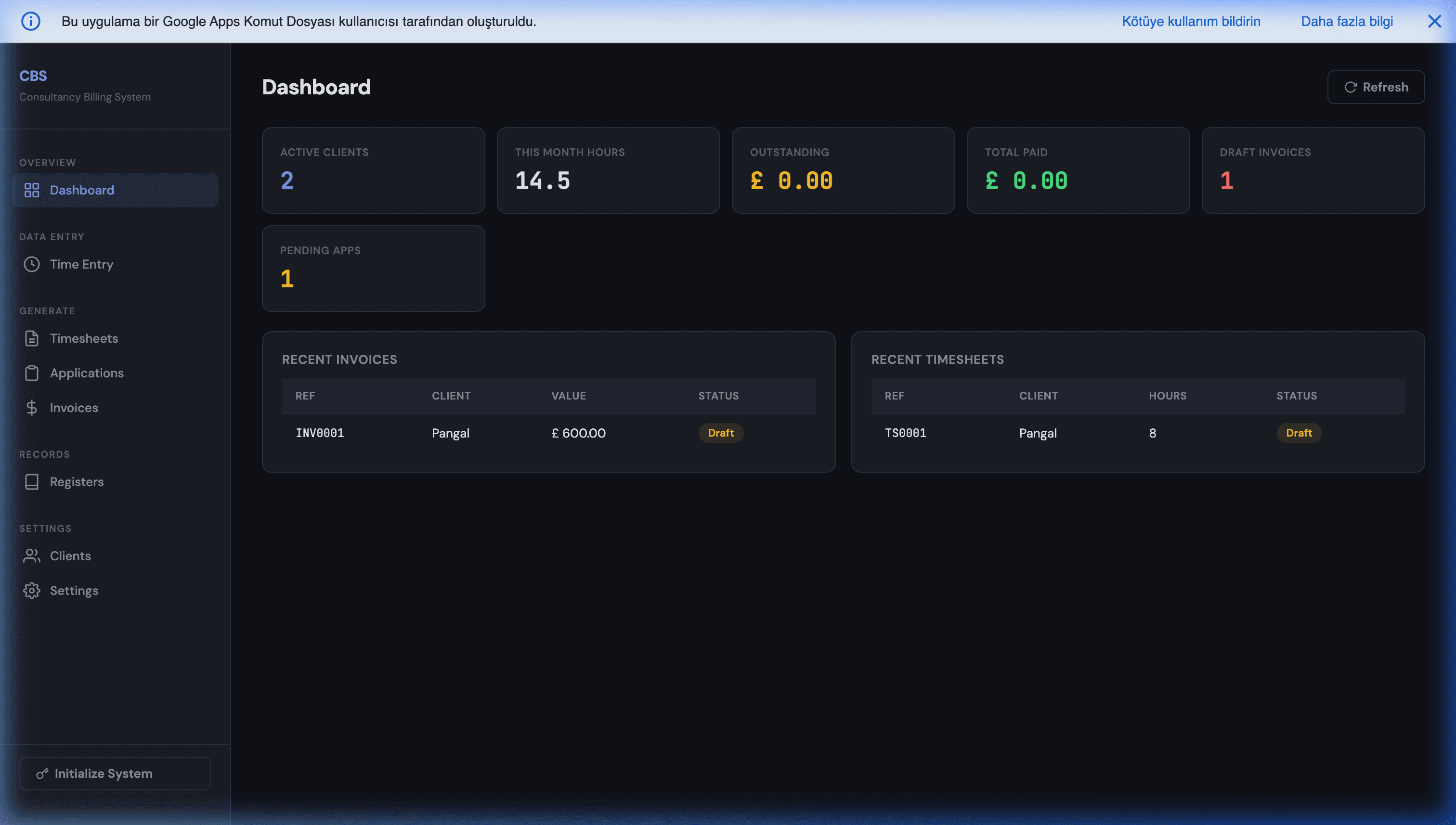
That is the point to move to a proper system. The choice is not only between renting accounting software and staying on a sheet: you can have a purpose-built system, with one-click PDF invoices, client-specific rates, overdue tracking with automatic reminders and a revenue dashboard, built around your process, that lives in your own Google account and that you own outright. That is what our invoicing and receivables tracking software is. Subscription tools such as FreshBooks or QuickBooks are a fair choice if you need bank feeds, payment collection or an accountant who works inside them; we say so when we scope a project.
Want this built around your invoices?
If your invoicing has outgrown a single tab, or you would like the reminders set up properly with your own wording, rates and payment terms, we can scope it in a free 30-minute discovery call. Our invoicing and receivables tracking software page shows what a finished system looks like, or message us on WhatsApp with roughly how many invoices you send a month.
Frequently Asked Questions
How do I send automatic payment reminders from Google Sheets?
Keep your invoices in a sheet with a client email, a due date and a paid date. Add a script that runs on a daily time-driven trigger, finds rows that are unpaid and past due, and sends an email with GmailApp.sendEmail. Write the stage you sent (for example 3, 7 or 14) into a log column so the same reminder is never sent twice. The full script is in this post and runs inside your own Google account at no extra cost.
How do I track overdue invoices in Google Sheets?
Add a Status column with =IF(F2<>"","Paid",IF(E2<TODAY(),"Overdue","Open")) and a Days Overdue column with =IF(G2="Overdue",TODAY()-E2,0). Colour overdue rows with conditional formatting, and total what is owed with =SUMIFS(D2:D,F2:F,""). That gives you a working receivables tracker with no script at all; the script only adds the reminders.
How many reminder emails can Apps Script send per day?
Per Google's published Apps Script quotas, email recipients per day are 100 for consumer (gmail.com) accounts and 1,500 for Google Workspace accounts, using MailApp or GmailApp. Quotas can change, so check the official quotas page, and use MailApp.getRemainingDailyQuota() in your script to see how much is left. For a typical small business sending a handful of reminders per day, this is not a constraint.
Will reminders from a script land in spam?
They are sent from your real Gmail or Workspace address, so they usually behave like any email you write by hand. Deliverability depends on the usual things: a properly configured domain (SPF, DKIM, DMARC if you use Workspace), a plain and personal tone, no attachments you do not need, and recipients who expect to hear from you. Test by sending the first few to yourself and a colleague.
When should I move from a Google Sheet to invoicing software?
When the sheet becomes the bottleneck rather than the helper. Typical signs are several people editing at once and overwriting each other, clients asking for online payment links, a need for client-specific rates and recurring billing, or the volume of reminders approaching your daily email quota. A sheet is excellent up to a modest number of invoices. Beyond that, a purpose-built receivables system, ideally one you own rather than rent, is easier to run.