
Google Sheets Invoice Template (Free): Fields, Formulas & How to Automate It
A good Google Sheets invoice template is one sheet with three blocks — a header (your business, the client, an invoice number, issue and due dates), a line-items table (description, quantity, unit price, line total), and a totals block (subtotal, tax, grand total, balance due) — held together by four formulas. You can build one for free in about ten minutes, and you don't need to download anyone's file to do it. This post gives you the exact fields and the copy-able formulas, then shows how to turn that static sheet into a one-click system that generates a branded PDF, emails the client, and tracks who's paid.
Google's template gallery ships an "Invoice" layout (File → New → From template gallery), and there are a hundred free downloads online. They all work. But rolling your own means you understand every cell, you control the branding, and — the part nobody's download gives you — you can automate it later. Let's build the template first, properly, then talk about when it's worth making it do the work for you.
What your invoice template needs — the exact fields
An invoice is a legal-ish document, so a few fields aren't optional if you want to get paid cleanly and keep your accountant happy. Here's the field list, grouped by block.
Header — who, what, when
- Your business name, address, and contact (and tax/VAT registration number if you're registered)
- Your logo (Insert → Image → over cells, so it doesn't push your grid around)
- "INVOICE" as a clear title
- Invoice number — unique and sequential (e.g.
INV-2026-0042); this matters for accounting and disputes - Client name, address, and contact
- Issue date and due date (or payment terms like "Net 30")
- PO / reference number if your client requires one on B2B invoices
Line-items table — one row per thing you're billing
| Column | Example | Notes |
|---|---|---|
| Description | "Website audit — 4 hrs" | What you did / sold |
| Quantity | 4 | Hours, units, whatever |
| Unit price | 75.00 | Per-unit rate |
| Line total | 300.00 | Formula, not typed |
Totals block — the money that must add up
- Subtotal — sum of all line totals
- Tax — subtotal × your rate (VAT/GST/sales tax)
- Grand total — subtotal + tax
- Amount paid — for partial payments / deposits
- Balance due — total − amount paid (this is the number the client acts on)
Footer — how to pay you
- Bank details / payment instructions (IBAN, sort code, account, or a payment link)
- Payment terms and any late-fee note
- A thank-you line — small thing, better response rates
Format the money columns as currency (Format → Number → Currency), freeze the header row (View → Freeze), and lock the formula cells if other people will touch the sheet. That's a complete, professional invoice.
The formulas cheat-sheet (copy these)
This is the entire math of an invoice — five formulas. Assume your line-items table runs in rows 12–30, with Quantity in column B, Unit Price in column C, and Line Total in column D.
| What | Cell | Formula | Why |
|---|---|---|---|
| Line total | D12 | =B12*C12 | Quantity × unit price, per row. Fill down the column. |
| Subtotal | D31 | =SUM(D12:D30) | Adds every line total. |
| Tax | D32 | =ROUND(D31*0.20, 2) | 20% here — change the rate for your region. |
| Grand total | D33 | =D31+D32 | Subtotal + tax. |
| Balance due | D35 | =D33-D34 | Total − amount paid (D34). |
Two upgrades that save real headaches:
- Store the tax rate in one place. Put your rate in a
Settingstab (saySettings!B2 = 0.20) and write tax as=ROUND(D31*Settings!B2, 2). When a rate changes, you edit one cell, not every invoice. - Wrap money in
ROUND(...,2). Floating-point math occasionally leaves you with a total that's a hundredth of a cent off.ROUNDkills the drift so your PDF never shows£299.9999999.
To track payments across invoices, add an Invoice Log tab: one row per invoice with columns for Invoice #, Client, Date, Due, Amount, Status (Paid/Unpaid), Paid date. Then:
- Total outstanding:
=SUMIF(Log!F:F, "Unpaid", Log!E:E)— your receivables at a glance. - Highlight overdue rows: conditional formatting with a custom formula like
=AND($F2="Unpaid", $D2<TODAY())turns late invoices red automatically.
At this point you have a genuinely useful, free invoicing setup. For a handful of invoices a month, stop here — it's honestly all you need.
Where the static template starts costing you time
The template is free, but it isn't free of work. Every invoice, you copy the master tab, bump the invoice number, retype or paste the client details, File → Download → PDF, rename the file, attach it to an email, write the email, send it, then remember to update the log tab to "Paid" three weeks later when the money lands — and chase it if it doesn't.
Two or three invoices a month? That's five minutes, no problem. Fifteen or thirty? That's a couple of hours of unpaid admin every month, plus the errors that creep in when you copy-paste totals by hand. This is the exact point where the same job is worth building once and never doing manually again.
Here's the honest comparison:
| Static Sheets template | Apps Script automation | |
|---|---|---|
| Cost | Free | One-time build (no monthly fee) |
| New invoice | Copy tab, edit fields by hand | Fill a form / row → one click |
| Invoice number | You remember to increment it | Auto-generated, never duplicated |
| File → Download → rename manually | Generated & saved to Drive automatically | |
| Email to client | Compose, attach, send yourself | Sent automatically with the PDF attached |
| Paid / unpaid tracking | Update the log by hand | Log row written automatically; overdue flagged |
| Reminders | You remember (or don't) | Nightly trigger emails overdue clients |
| Where it lives | Your Google account | Your Google account |
| Good for | A few invoices/month | ~10–20+ invoices/month |
Both options keep your financial data in your own Google Drive — no third party holding a copy of your books. The difference is purely how much of the busywork you do by hand.
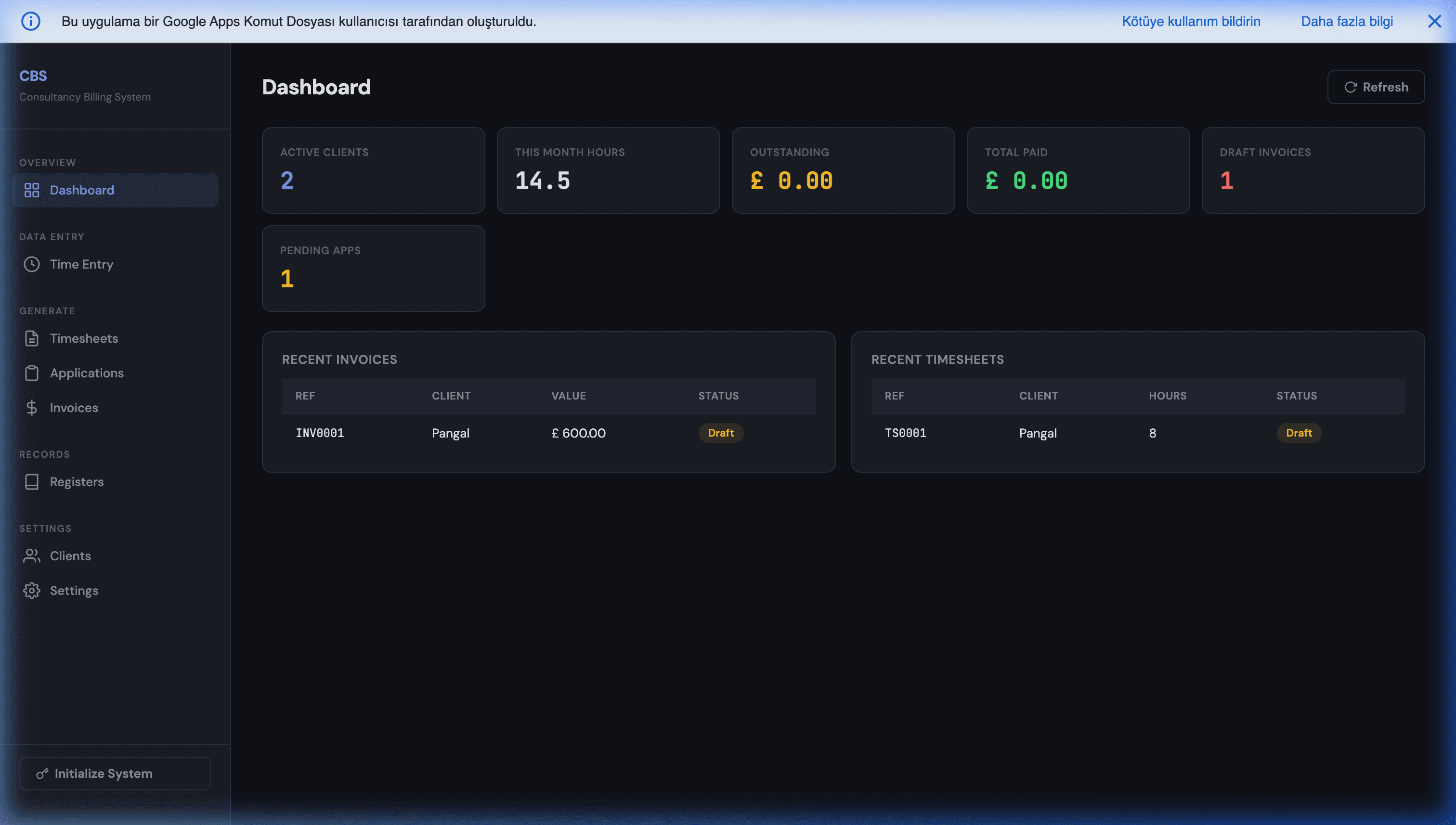
Want the invoicing automated end-to-end — PDF, email, and payment tracking — without a monthly SaaS bill? That's exactly what we build: a one-click billing system inside your own Google account, owned outright, no per-invoice fee. Take a look at our Consultancy Billing System, or get a custom invoicing system scoped for your workflow. Free feasibility review — we'll tell you honestly whether automation pays off at your volume or whether the free template is genuinely all you need.
Automating it: the Apps Script sketch
Here's the core of what turns the static sheet into a system. This is illustrative but uses real Apps Script APIs — a custom menu button that takes the active invoice, exports it to PDF, saves it to Drive, emails the client, and logs it.
// Adds a menu to the spreadsheet on open.
function onOpen() {
  SpreadsheetApp.getUi()
    .createMenu('Invoicing')
    .addItem('Generate PDF & Email Client', 'generateInvoice')
    .addToUi();
}

function generateInvoice() {
  const ss = SpreadsheetApp.getActiveSpreadsheet();
  const sheet = ss.getSheetByName('Invoice');

  // Pull the fields your PDF and email need from named cells.
  const invoiceNo   = sheet.getRange('B4').getValue();   // e.g. INV-2026-0042
  const clientName  = sheet.getRange('B7').getValue();
  const clientEmail = sheet.getRange('B8').getValue();
  const total       = sheet.getRange('D33').getValue();   // grand total

  // 1) Export the invoice sheet as a PDF.
  const pdfBlob = exportSheetAsPdf(ss, sheet)
    .setName(`Invoice-${invoiceNo}.pdf`);

  // 2) Save the PDF to a Drive folder (create/find it once).
  const folder = getOrCreateFolder('Invoices');
  folder.createFile(pdfBlob);

  // 3) Email it to the client with the PDF attached.
  GmailApp.sendEmail(
    clientEmail,
    `Invoice ${invoiceNo}`,
    `Hi ${clientName},\n\nPlease find invoice ${invoiceNo} attached ` +
    `for ${total}. Thank you for your business.\n\n— Your Company`,
    { attachments: [pdfBlob], name: 'Your Company Billing' }
  );

  // 4) Log it so paid/unpaid tracking is automatic.
  // Columns must match the Log tab: Invoice #, Client, Date, Due, Amount, Status, Paid date.
  const dueDate = sheet.getRange('B6').getValue();  // due date from the invoice
  ss.getSheetByName('Log').appendRow([
    invoiceNo, clientName, new Date(), dueDate, total, 'Unpaid', ''
  ]);

  SpreadsheetApp.getUi().alert(`Invoice ${invoiceNo} sent to ${clientEmail}.`);
}

// Exports a single sheet as a PDF blob via the Sheets export endpoint.
function exportSheetAsPdf(ss, sheet) {
  const url = `https://docs.google.com/spreadsheets/d/${ss.getId()}/export`
    + `?format=pdf&gid=${sheet.getSheetId()}`
    + `&portrait=true&fitw=true&gridlines=false`;
  const token = ScriptApp.getOAuthToken();
  const res = UrlFetchApp.fetch(url, {
    headers: { Authorization: `Bearer ${token}` }
  });
  return res.getBlob();
}

function getOrCreateFolder(name) {
  const it = DriveApp.getFoldersByName(name);
  return it.hasNext() ? it.next() : DriveApp.createFolder(name);
}
A few notes on how this actually behaves:
- Two ways to make the PDF. The sketch above exports the sheet itself (fast, keeps your Sheets styling). The alternative — used in our Magento-to-Google-Docs invoice guide — is to fill a Google Docs template with
{{PLACEHOLDER}}tags and export that as PDF, which gives you pixel-perfect, designer-grade layouts. Pick Docs when the invoice is a branding statement; pick the Sheets export when you just need it clean and quick. GmailAppvsMailApp.MailApp.sendEmailis simpler and has a slightly higher daily quota;GmailApplets you send from aliases, add the invoice to a Gmail label, or read replies. For invoicing,GmailAppis usually the better fit.- It writes the log row for you. That single
appendRowis what makes paid/unpaid tracking automatic — no more forgetting to update the sheet. - Payment reminders are a separate trigger. A time-driven trigger running nightly can scan the Log tab for
Unpaidrows past their due date and email a polite reminder — the piece of accounts-receivable that manual invoicing always drops.
The honest caveats
Automation isn't free of limits, and pretending otherwise would be dishonest:
- The 6-minute execution limit. A single Apps Script run stops at ~6 minutes. Generating one invoice is milliseconds, so this never bites for on-demand invoicing. But if you batch-generate 300 monthly retainer invoices in one loop, you'll hit the wall — the fix is to process in chunks and resume with a trigger, which we cover in Apps Script's 6-minute limit and how to beat it.
- Email quotas. Sending mail from Apps Script is capped at ~100 recipients/day on a consumer Gmail account and ~1,500/day on Google Workspace (separate from Gmail's own sending limits). Fine for invoicing; worth knowing before you also route reminders and receipts through the same account.
- It's a build, not a download. The static template is copy-paste-and-go. The automated system is a one-time setup — either you write it, or someone builds it for you. That's the trade-off you're weighing against every month you'd otherwise spend on manual admin.
For most freelancers and small agencies, the crossover is real and it's low: somewhere around 10–20 invoices a month, the hour or two you save every month makes a one-time automation cheaper than both the manual busywork and a recurring invoicing subscription. This is the same principle we apply across the board in replacing rented SaaS with tools you own in Google Workspace — you rarely need to pay monthly, forever, for a job your Google account can already do.
Start free, automate when it hurts
Build the template first. Use the fields and formulas above — they'll give you a clean, professional invoice today, at zero cost, that you fully understand and control. Track paid/unpaid in a log tab, highlight overdue rows, and for a light invoicing load, genuinely stop there.
When invoicing starts eating your evenings — when you're copy-pasting totals, exporting PDFs by hand, and chasing payments from memory — that's the signal to automate. The same sheet becomes a one-click billing system that lives in your Google account, costs nothing to run, and is yours to keep. No monthly bill, no vendor lock-in, no developer on retainer.
If you're at that point, tell us how you invoice today and we'll do a free feasibility review — a straight answer on whether automating pays off at your volume, roughly what a one-time build would cost, and where the free template above is genuinely all you need. No obligation, and we'll say so if a static sheet is the smarter call. You can also see a working version in our Consultancy Billing System.
Frequently Asked Questions
Is there a free Google Sheets invoice template?
Yes — you can build one for free in a few minutes, and you don't need to download anyone's file to do it. A usable invoice is just three blocks in one sheet: a header (your business, the client, invoice number and dates), a line-items table (description, quantity, unit price, line total), and a totals block (subtotal, tax, grand total, balance due). The only 'magic' is four formulas. This post gives you the exact fields and those formulas to copy. Google's own template gallery (File → New → From template gallery) also ships an 'Invoice' template if you'd rather start from a pre-built layout, but rolling your own takes about ten minutes and you understand every cell.
How do I make an invoice in Google Sheets?
Open a blank sheet, add a header block with your business name, the client's details, an invoice number and the issue and due dates. Below it, make a table with columns for Description, Quantity, Unit Price and Line Total, where Line Total is =Quantity*Unit Price. Under the table, add Subtotal (=SUM of the line totals), Tax (=Subtotal*tax rate), Total (=Subtotal+Tax), Amount Paid, and Balance Due (=Total-Amount Paid). Format the money columns as currency, freeze the header, and you have a working invoice. To reuse it, keep this as a master tab and copy it per invoice — or automate that copying with Apps Script so each invoice gets its own number and PDF automatically.
What formulas do I need for a Google Sheets invoice?
Four do almost everything. Line total per row: =B12*C12 (quantity × unit price). Subtotal: =SUM(D12:D30) over the line-total column. Tax: =D31*0.20 for a 20% rate, or =D31*Settings!B2 if you store the rate in a settings cell so you can change it in one place. Grand total: =D31+D32 (subtotal + tax). Balance due: =D33-D34 (total − amount paid). Wrapping the tax and totals in ROUND(...,2) avoids fractional-cent rounding drift. That's the entire math of an invoice — everything else is formatting.
How do I automatically generate a PDF invoice from Google Sheets?
Use Google Apps Script. A short script exports your invoice sheet as a PDF (or fills a Google Docs template with placeholder tags like {{CLIENT}} and {{TOTAL}} and exports that), saves the PDF to a Drive folder with DriveApp, and emails it to the client with MailApp or GmailApp — all from one custom menu item inside the sheet. It runs free under your normal Google Workspace quotas; there's no per-invoice fee and no third-party server holding your financials. This post includes a working code sketch. For big monthly batches, be aware of Apps Script's 6-minute execution limit and generate PDFs in chunks.
Should I use a Google Sheets template or invoicing software like FreshBooks or QuickBooks?
It depends on volume and what you need beyond invoicing. A free Sheets template is the right call for a handful of invoices a month, or when you just need clean PDFs and a paid/unpaid list. Dedicated software earns its subscription when you need built-in payment collection, bank reconciliation, multi-currency accounting, or your accountant lives in it. The middle ground people miss is a one-time Apps Script build: it gives you the one-click PDF, auto-email and payment tracking of the software, inside your own Google account, with no monthly fee. Past roughly 10–20 invoices a month, that automation usually pays for itself over a static template — and it costs less over a year than most SaaS.
Can a Google Sheets invoice track which invoices are paid or unpaid?
Yes. Keep a separate 'Invoice Log' tab with one row per invoice — invoice number, client, date, due date, amount, status (Paid/Unpaid), and paid date. Use conditional formatting to highlight overdue rows (status = Unpaid and due date < today), and a simple =SUMIF to total your outstanding receivables. In a static template you update the status by hand; with Apps Script, generating an invoice writes the log row automatically and a nightly trigger can flag overdue invoices or send a polite reminder email — turning the sheet into a lightweight accounts-receivable system.