
Google Sheets CRM Template (Free): Columns, Formulas & How to Automate Follow-Ups
A good Google Sheets CRM template is one tab — a table with one row per deal, columns for the contact, company and email, a deal stage dropdown, deal value, probability and weighted value, a next follow-up date, and an owner — plus a small dashboard driven by three or four formulas. You can build one for free in about fifteen minutes, and you don't need to download anyone's file to do it. This post gives you the exact columns and the copy-able formulas, then shows how to turn that static sheet into a system that chases your follow-ups automatically.
Google's own template gallery has no real CRM, and the free downloads online range from over-engineered to abandoned. Rolling your own means you understand every cell, it matches how you actually sell, and — the part no download gives you — you can automate it later. We'll build the template properly first, then cover when it's worth making it do the work for you.
This is one of a set of free, owned-not-rented business tools we publish — see the free Google Sheets invoice template and the Google Sheets inventory template if billing or stock is your next job.
What your CRM template needs — the exact columns
A sales CRM has one purpose: never lose track of a deal or forget a follow-up. Everything below serves that. Put all of it in a single Deals tab, one row per opportunity.
| Column | Example | Notes |
|---|---|---|
| Contact | "Jane Okoro" | The person, not the company |
| Company | "Okoro Interiors" | Group deals by account later |
| jane@okoro.co | What the automation emails | |
| Phone | +44 7700 900123 | For calls / WhatsApp |
| Deal Stage | "Proposal" | A dropdown — see below |
| Deal Value | 4,500 | The full contract value |
| Probability | 0.4 | 0–1 chance of closing (by stage) |
| Weighted Value | 1,800 | Formula: value × probability |
| Next Follow-up | 2026-08-02 | The date that drives reminders |
| Owner | "Sam" | Who's responsible (for teams) |
| Source | "Referral" | Where the lead came from |
| Notes | "Wants Q3 start" | Last conversation, next step |
Two setup steps make this a real CRM rather than a list:
- Make Deal Stage a dropdown. Select the column, then Data → Data validation → Dropdown, and add your stages:
New,Contacted,Qualified,Proposal,Negotiation,Won,Lost. This keeps stages consistent so your formulas and reports actually work — one person typing "proposal" and another "Proposal Sent" quietly breaks everyCOUNTIF. - Freeze the header row (View → Freeze → 1 row) and format Deal Value as currency and Probability as a number between 0 and 1.
A useful convention: tie probability to stage so you don't guess per deal. For example New = 0.1, Qualified = 0.3, Proposal = 0.5, Negotiation = 0.75, Won = 1, Lost = 0. You can type it, or drive it with a lookup — either way, weighted pipeline stops being a gut number and becomes something you can trust.
The formulas cheat-sheet (copy these)
This is the entire math of a pipeline dashboard — four formulas. Assume your Deals table starts at row 2, with Deal Stage in column E, Deal Value in column F, Probability in column G, Weighted Value in column H, and Next Follow-up in column I.
| What | Cell | Formula | Why |
|---|---|---|---|
| Weighted value | H2 | =F2*G2 | Deal value × probability, per row. Fill down. |
| Total weighted pipeline | anywhere | =SUMPRODUCT(F2:F, G2:G) | Your realistic forecast across all open deals. |
| Deals in a stage | anywhere | =COUNTIF(E:E, "Proposal") | How many deals sit at "Proposal". |
| Pipeline value in a stage | anywhere | =SUMIF(E:E, "Proposal", F:F) | Total value stuck at that stage. |
A few upgrades that turn those into a dashboard:
- Total open pipeline (raw):
=SUMIFS(F:F, E:E, "<>Won", E:E, "<>Lost")sums the full value of every deal that's neither Won nor Lost — your unweighted "what's still in play" number. - Deals-by-stage table. List your stages down a column, then
=COUNTIF(E:E, K2)and=SUMIF(E:E, K2, F:F)next to each — an instant funnel showing count and value per stage. - This-week's follow-ups:
=COUNTIFS(I:I, ">="&TODAY(), I:I, "<="&TODAY()+7, E:E, "<>Won", E:E, "<>Lost")counts deals due for a touch in the next seven days.
Now flag what matters most — overdue follow-ups. Select your data rows and add a conditional-format rule (Format → Conditional formatting → Custom formula):
=AND($I2<TODAY(), $E2<>"Won", $E2<>"Lost")
Any deal whose Next Follow-up date is in the past and isn't already closed turns red. That single rule is the difference between a CRM that catches slipping deals and a spreadsheet you forget to open. At this point you have a genuinely useful, free CRM. For a solo seller or a small pipeline, stop here — it's honestly all you need.
Where the static template starts costing you
The template is free, but it isn't free of work. The overdue-red rule only helps when you actually open the sheet. Every day you have to remember to check it, read down the red rows, and act — and the whole system depends on one habit that quietly lapses the first busy week you have. Deals don't go cold because you don't have a CRM; they go cold because nobody looked at it on Tuesday.
That's the exact job worth handing to a machine: a script that opens the sheet for you, every morning, and tells you (or each owner) precisely which deals need a touch today. You never miss a follow-up because you never have to remember to look.
Here's the honest comparison:
| Static Sheets CRM | Apps Script automation | |
|---|---|---|
| Cost | Free | One-time build (no monthly fee) |
| Follow-up reminders | You remember to open the sheet | Emailed to you daily, automatically |
| Overdue deals | Red — if you look | Pushed to your inbox / each owner |
| New lead intake | Type the row by hand | Web form → row written automatically |
| Lead scoring | Gut feel | Auto-scored and prioritized |
| Reporting | Read the dashboard yourself | Weekly pipeline summary emailed |
| Where it lives | Your Google account | Your Google account |
| Good for | Solo / small pipeline | Any team that lets deals slip |
Both options keep your pipeline in your own Google Drive — no third party holding a copy of your customer list. The difference is purely how much of the chasing you do by hand.
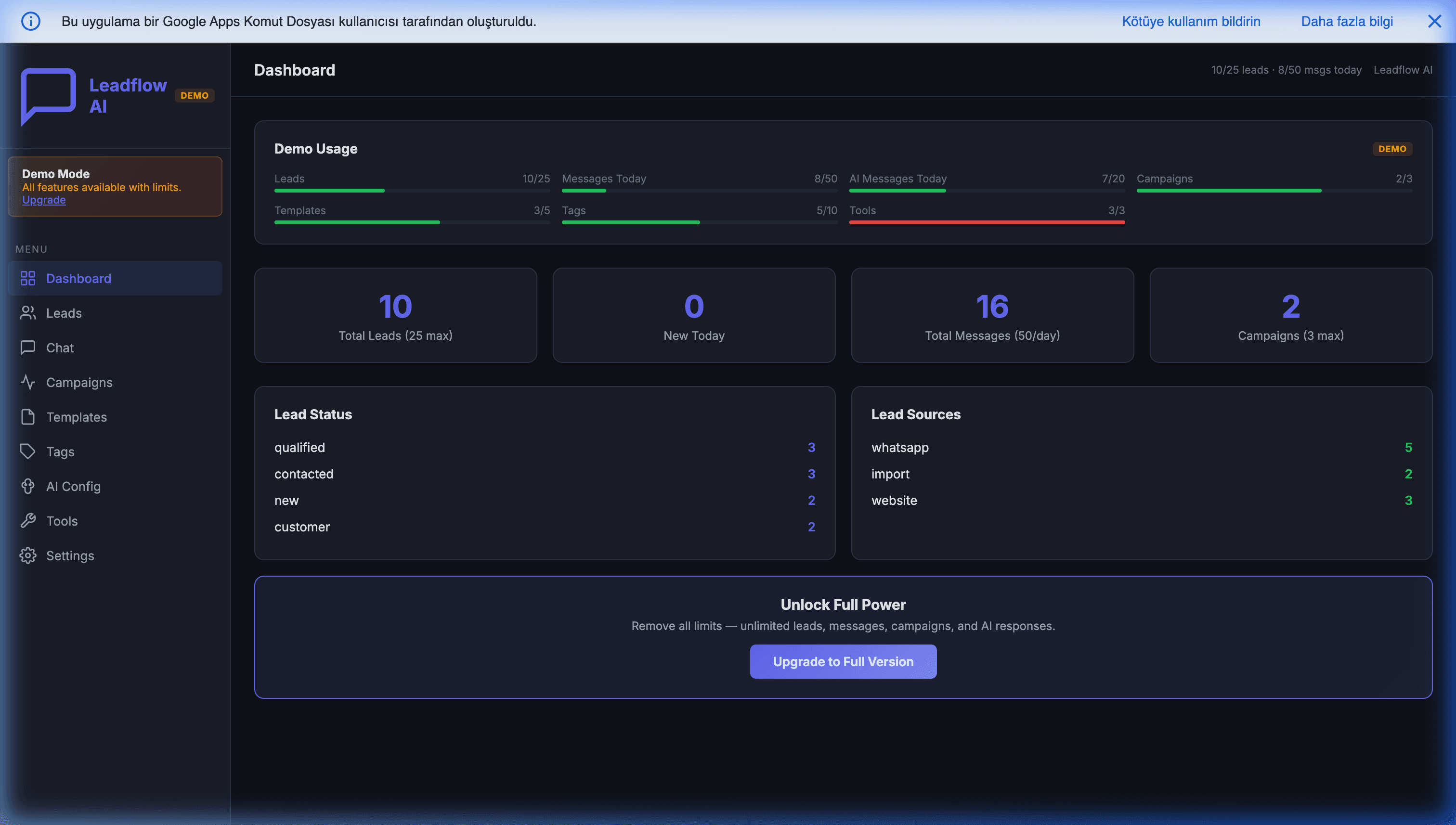
Want your CRM to chase follow-ups for you — without a monthly CRM bill? That's exactly what we build: an automated mini-CRM inside your own Google account, owned outright, no per-seat fee. See a working example in our WhatsApp AI Mini-CRM (Leadflow), or get a custom CRM scoped around how your team actually sells. Free feasibility review — we'll tell you honestly whether automation pays off at your volume, or whether the free template above is genuinely all you need.
Automating it: the follow-up reminder sketch
Here's the core of what turns the static sheet into a system — a daily reminder. This is illustrative but uses real Apps Script APIs. It scans the Deals tab for follow-ups due today or overdue, skips closed deals, and emails you a tidy list. Run it on a time-driven trigger so it fires every morning with no one touching it.
// Scans the CRM for due/overdue follow-ups and emails a daily digest.
function sendFollowUpReminders() {
  const sheet = SpreadsheetApp.getActiveSpreadsheet().getSheetByName('Deals');
  const rows = sheet.getDataRange().getValues();
  const header = rows.shift();  // drop the header row

  // Column indexes — adjust to your layout (0-based).
  const CONTACT = 0, EMAIL = 2, STAGE = 4, VALUE = 5, FOLLOWUP = 8, OWNER = 9;

  // Normalise "today" to midnight so date-only comparisons are clean.
  const today = new Date();
  today.setHours(0, 0, 0, 0);

  const due = rows.filter(r => {
    const stage = String(r[STAGE]);
    const followUp = r[FOLLOWUP];
    if (stage === 'Won' || stage === 'Lost') return false;   // closed — skip
    if (!(followUp instanceof Date)) return false;            // no date set
    const d = new Date(followUp);
    d.setHours(0, 0, 0, 0);
    return d <= today;                                        // due or overdue
  });

  if (due.length === 0) return;  // nothing to nag about today

  // Build a readable list, most-overdue (oldest date) first.
  const lines = due
    .sort((a, b) => new Date(a[FOLLOWUP]) - new Date(b[FOLLOWUP]))
    .map(r => `• ${r[CONTACT]} (${r[STAGE]}, ${r[VALUE]}) — `
            + `due ${Utilities.formatDate(new Date(r[FOLLOWUP]),
                    Session.getScriptTimeZone(), 'yyyy-MM-dd')}`
            + (r[OWNER] ? ` — owner: ${r[OWNER]}` : ''));

  GmailApp.sendEmail(
    Session.getActiveUser().getEmail(),
    `${due.length} follow-up${due.length > 1 ? 's' : ''} due today`,
    `These deals need a touch:\n\n${lines.join('\n')}\n\n— Your CRM`
  );
}
To make it run itself, add the trigger once — either in the editor (Triggers → Add trigger → time-driven → day timer) or in code:
// Run this ONCE to schedule the daily 8am reminder.
function installDailyTrigger() {
  ScriptApp.newTrigger('sendFollowUpReminders')
    .timeBased()
    .atHour(8)
    .everyDays(1)
    .create();
}
A few notes on how this actually behaves:
- It emails you, not the client — by design. The safe first version nudges you to make the call or send the message yourself. Once you trust it, the same loop can email the contact directly with
GmailApp.sendEmail(r[EMAIL], ...)— but auto-emailing customers deserves a careful, personal template. - Per-owner digests. On a team, group
dueby the Owner column and send each person only their own deals — oneGmailApp.sendEmailper owner. Nobody wades through everyone else's pipeline. - This is the on-ramp to more. The same daily trigger is where lead scoring and richer routing live. See auto-score and prioritize leads with AI so your reminders surface the deals most worth your time first.
The honest caveats
Automation isn't free of limits, and pretending otherwise would be dishonest:
- The 6-minute execution limit. A single Apps Script run stops at ~6 minutes. Scanning a few hundred deals is milliseconds, so this never bites for a normal CRM. But if you loop over tens of thousands of rows and send a lot of mail in one run, you'll hit the wall — the fix is to process in chunks, which we cover in Apps Script's 6-minute limit and how to beat it.
- Email quotas. Sending mail from Apps Script is capped at ~100 recipients/day on a consumer Gmail account and ~1,500/day on Google Workspace. A daily self-reminder is one email; if you start auto-messaging every contact, mind the ceiling.
- Sheets is single-tab, not multi-user. Two people editing the same rows at once will overwrite each other, and there's no per-user permission or audit trail. Past a few hundred active deals, or when a team needs to work the same pipeline concurrently, put a proper interface on top — that's the inventory-style web app pattern applied to deals — or move to dedicated software. Be honest with yourself about which side of that line you're on.
- It's a build, not a download. The static template is copy-paste-and-go. The automated version is a one-time setup — either you write it, or someone builds it for you. That's the trade-off against every deal you'd otherwise let slip.
Beyond reminders: scoring, WhatsApp, and B2B
Follow-up reminders are the highest-value automation to add first, but they're the doorway, not the room. Once the sheet is chasing dates for you, the same owned-in-Google-Workspace pattern extends naturally:
- Lead scoring on autopilot. Instead of chasing deals top-to-bottom, let a model rank each incoming lead so your day starts with the ones most likely to close. That's auto-score and prioritize leads with AI.
- WhatsApp in the same sheet. If most of your selling happens in chat, you can log inbound WhatsApp messages into the CRM and even connect WhatsApp and let AI handle replies — same data, no separate app.
- B2B and Magento accounts. Selling to businesses with existing contact records? Sync a B2B CRM with Google Contacts so your pipeline and your address book stay in step.
Each of those is a bolt-on to the exact template you just built — not a rip-and-replace. That's the whole point of owning it in your Google account: you start free and add only the automation you actually need. And when the sheet itself becomes the bottleneck — more users, more stages, a proper app on top — custom CRM development takes the same pipeline into a full web app.
Start free, automate when deals start slipping
Build the template first. Use the columns and formulas above — they'll give you a clean, working sales pipeline today, at zero cost, that you fully understand and control. Track deal stages with a dropdown, weight your pipeline with SUMPRODUCT, flag overdue follow-ups in red, and for a light or solo pipeline, genuinely stop there.
When you notice deals going cold because nobody opened the sheet on the right day — that's the signal to automate. The same sheet becomes a system that emails you every morning with exactly who to chase, lives in your Google account, costs nothing to run, and is yours to keep. No monthly bill, no vendor lock-in, no developer on retainer.
If you're at that point, tell us how your team sells today and we'll do a free feasibility review — a straight answer on whether automating pays off at your volume, roughly what a one-time build would cost, and where the free template above is genuinely all you need. No obligation, and we'll say so if a static sheet is the smarter call. You can also see a working version in our WhatsApp AI Mini-CRM (Leadflow).
Frequently Asked Questions
Is there a free Google Sheets CRM template?
Yes — and you can build one for free in about fifteen minutes without downloading anyone's file. A usable sales CRM is one tab: a table with one row per deal, columns for the contact, company, email, deal stage, deal value, probability, next follow-up date, and owner, plus a small dashboard block driven by three or four formulas. This post gives you the exact columns and the formulas to copy. Google's template gallery (File → New → From template gallery) doesn't ship a real CRM, but there are many free downloads online — rolling your own means you understand every cell and can automate it later.
How do I build a CRM in Google Sheets?
Open a blank sheet and make one 'Deals' tab with columns for Contact, Company, Email, Phone, Deal Stage, Deal Value, Probability, Weighted Value, Next Follow-up, Owner, and Notes. Turn Deal Stage into a dropdown with Data → Data validation so stages stay consistent. Make Weighted Value a formula (=Deal Value × Probability). Add a small dashboard with =SUMPRODUCT for weighted pipeline, =COUNTIF for deals per stage, and conditional formatting to flag overdue follow-ups. That's a complete, working CRM. To make it chase follow-ups for you, add a daily Apps Script trigger that scans for due rows and emails a reminder.
How do I automate follow-up reminders in a Google Sheets CRM?
Use Google Apps Script with a time-driven trigger. A short script runs once a day, scans your Deals tab for rows where the Next Follow-up date is today or earlier and the deal isn't Won or Lost, and sends you (or the deal owner) a reminder email listing those deals with GmailApp. It runs free under your normal Google quotas — no third-party CRM holding your pipeline, no monthly fee. This post includes a working code sketch. You can extend the same trigger to email the contact directly, or to auto-score and prioritize leads.
What formulas does a Google Sheets CRM need?
Four do most of the work. Weighted value per deal: =F2*G2 (deal value × probability). Total weighted pipeline: =SUMPRODUCT(F2:F, G2:G) across the columns. Deals in a given stage: =COUNTIF(E:E, "Proposal"). Pipeline value in a stage: =SUMIF(E:E, "Proposal", F:F). Then a conditional-format rule =AND($I2<TODAY(), $E2<>"Won", $E2<>"Lost") turns overdue follow-ups red. That handful covers a real sales dashboard.
When should I move off a Google Sheets CRM to real software?
A Sheets CRM is great for a solo seller or a small team up to a few hundred active deals. You've outgrown it when multiple people need to edit the same rows at once without stepping on each other, when you need per-user permissions or an audit trail, or when the sheet gets slow past a few thousand rows of history. At that point a lightweight web app on top of the same data — or a dedicated CRM — earns its keep. The middle ground people miss is a one-time Apps Script build that adds automation to the sheet you already own, with no monthly fee.
Can a Google Sheets CRM sync with WhatsApp or score leads automatically?
Yes, with automation on top of the sheet. Apps Script can call an AI model to score and prioritize each lead as it lands, and a WhatsApp Business API integration can log inbound messages into the sheet and even auto-reply. That's beyond a static template — it's a build — but it keeps your CRM in your own Google account instead of a monthly SaaS. We cover both in linked guides, and it's exactly what our Leadflow mini-CRM does.