
Google Sheets Inventory Template (Free): Columns, Formulas & How to Automate It
A good Google Sheets inventory template is one sheet with a row per product and a handful of columns — SKU, item name, quantity on hand, reorder point, unit cost, stock value, supplier, and last updated — held together by three formulas: stock value (quantity × unit cost), a reorder flag that prints REORDER when you're low, and a total-value sum. You can build one for free in about ten minutes, and you don't need to download anyone's file to do it. This post gives you the exact columns and the copy-able formulas, then shows how to turn that static sheet into one that emails you what to reorder — without paying monthly for inventory software.
Google's template gallery has basic tracker layouts (File → New → From template gallery), and there are plenty of free downloads online. They all work. But rolling your own means you understand every cell, you control the columns, and — the part no download gives you — you can automate it later. Let's build the template first, properly, then talk about when it's worth making it do the work for you.
What your inventory template needs — the exact columns
An inventory tracker only earns its keep if it answers two questions instantly: how much of each thing do I have, and what do I need to reorder now. These columns cover both. One row per SKU.
| Column | Example | What it's for |
|---|---|---|
| SKU | TSHIRT-BLK-M | Unique code per item — your key for everything else |
| Item name | "T-Shirt, Black, M" | Human-readable description |
| Quantity on hand | 42 | Current stock — the number everything hinges on |
| Reorder point | 20 | The level at which you should reorder (see below) |
| Unit cost | 6.50 | What you pay per unit — drives stock value |
| Stock value | 273.00 | Formula: quantity × unit cost |
| Supplier | "Acme Textiles" | Who to order from — saves a lookup |
| Reorder? | REORDER | Formula flag — prints only when you're low |
| Last updated | 2026-07-19 | So you know how stale the count is |
A few honest notes on the columns:
- SKU is non-negotiable past a handful of items. It's how a formula (or a script) finds a specific product without guessing from a name that might have typos.
- Reorder point is the quiet hero. A simple, defensible version:
(average units sold per day × supplier lead time in days) + a small safety buffer. If you sell ~3/day and your supplier takes 7 days, set it around 25–30 so you reorder before you hit zero. Fast movers and slow suppliers get higher points. - Unit cost lets the sheet total your inventory value — useful for insurance, financing, and knowing how much cash is sitting on your shelves.
Format the money columns as currency (Format → Number → Currency), freeze the header row (View → Freeze → 1 row), and turn the top row into a filter (Data → Create a filter) so you can sort by "Reorder?" in one click. That's a complete, professional stock tracker.
The formulas cheat-sheet (copy these)
This is the entire math of a tracker — three formulas. Assume your data starts in row 2, with Quantity on hand in column C, Reorder point in column D, Unit cost in column E, and Stock value in column F.
| What | Cell | Formula | Why |
|---|---|---|---|
| Stock value | F2 | =C2*E2 | Quantity × unit cost, per row. Fill down the column. |
| Reorder flag | H2 | =IF(C2<=D2,"REORDER","") | Prints REORDER only when on-hand is at or below the reorder point. |
| Total inventory value | a summary cell (e.g. F1002) | =SUM(F2:F1000) | Total cash tied up in stock. Put it below the data, not in the header row. |
Two upgrades that save real headaches:
- Make the flag impossible to miss. With the
Reorder?formula in place, add conditional formatting: select column H, Format → Conditional formatting, "Text is exactly"REORDER, fill red. Now low items light up the moment stock drops — no scanning required. - Auto-stamp the last-updated date. Google Sheets has no native "changed on" per row, but a small Apps Script
onEdittrigger can write today's date to the "Last updated" cell whenever a row's quantity changes — so you always know how fresh the count is. (Same script pattern as the alert below.)
Prefer a movement log? (more accurate, no drift)
Editing a single "Quantity on hand" cell by hand is fine for a small catalog, but it drifts — someone forgets to update it, or two people edit at once. The sturdier method is a movement log: a second tab where every stock change is a dated row.
Give the Log tab columns for SKU, Date, In, Out, Note. Then on your main sheet, compute on-hand instead of typing it:
=SUMIF(Log!A:A, A2, Log!C:C) - SUMIF(Log!A:A, A2, Log!D:D)
That nets every stock-in against every stock-out for the SKU in A2 — the count can never silently drift, and you get a full audit trail of who moved what and when. It's a small step up in setup for a big step up in trust. If you want the full event-sourced version of this — multiple warehouses, lot tracking, and FIFO cost accounting — we've built it out in a pro multi-warehouse inventory system; this template is deliberately the simpler starting point.
At this point you have a genuinely useful, free inventory tracker. For a small catalog that one person maintains, stop here — it's honestly all you need.
Where the static template starts costing you
The template is free, but it isn't free of work. Someone has to open the sheet, keep the counts current, eyeball the REORDER column, and actually remember to look — every day, or stockouts slip through. And a shared sheet with several people editing invites the classic problem: two people update the same row, one overwrites the other, and the count is wrong by lunchtime.
A few dozen SKUs and one owner? No problem — the free sheet is the right tool. A few hundred SKUs, a team touching it, or products you genuinely can't afford to run out of? That's where the same job is worth building once and never babysitting again.
Here's the honest comparison:
| Static Sheets template | Apps Script automation | |
|---|---|---|
| Cost | Free | One-time build (no monthly fee) |
| Low-stock alerts | You remember to check the sheet | Emailed to you automatically each morning |
| Stock count | Typed by hand, can drift | Netted from a movement log, never drifts |
| Multiple editors | Overwrite each other | Multi-user web app, safe concurrent edits |
| Reorder list | You filter and read it off | Generated and sent to you (or the supplier) |
| Audit trail | None, unless you log by hand | Every movement dated and attributed |
| Where it lives | Your Google account | Your Google account |
| Good for | A few dozen SKUs, one person | Hundreds of SKUs, a team, critical stock |
Both options keep your data in your own Google Drive — no third party holding a copy of your stock levels. The difference is purely how much of the checking and chasing you do by hand.
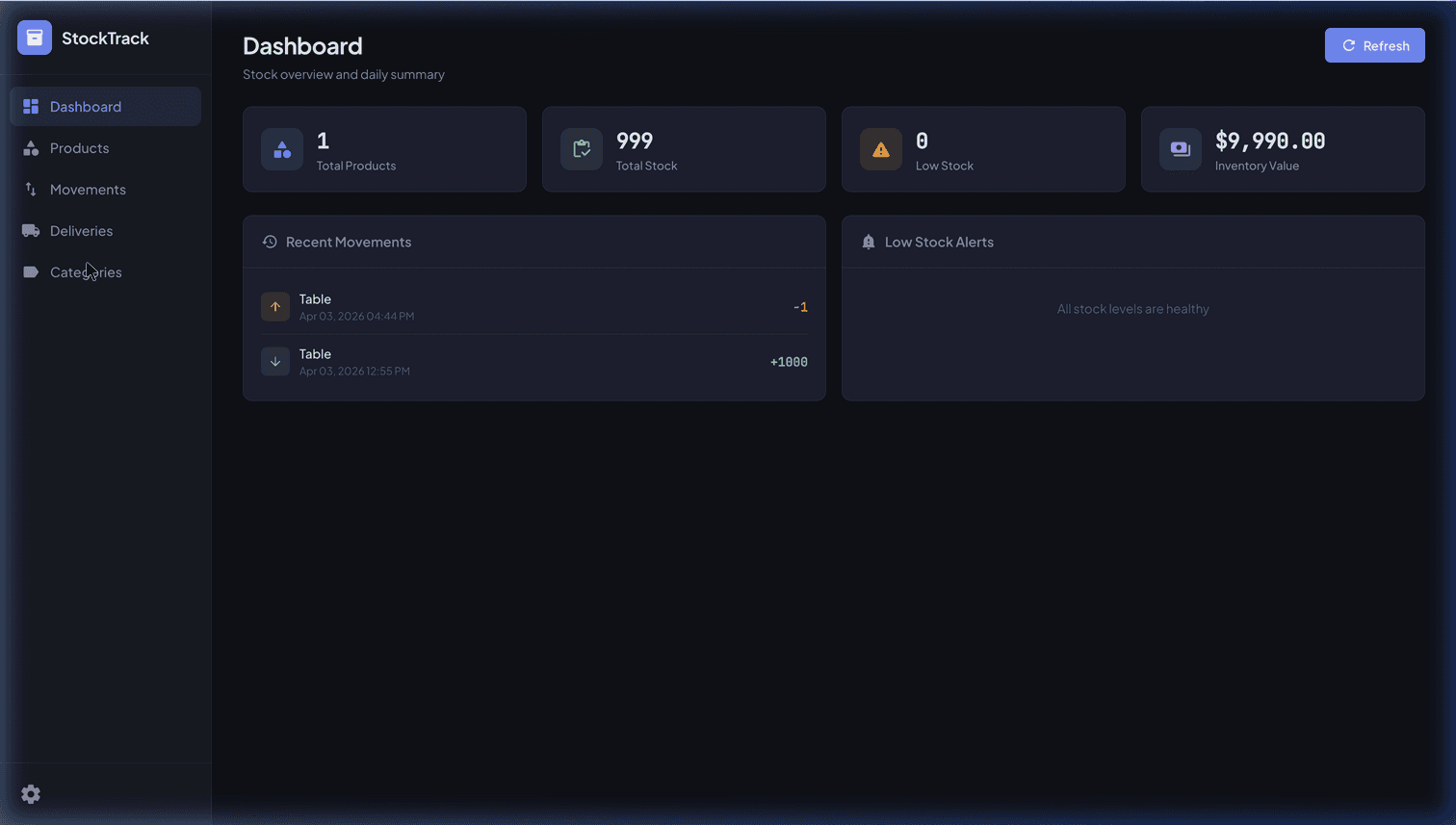
Want stock levels, low-stock alerts, and reordering handled automatically — with no monthly inventory SaaS bill? That's exactly what we build: an inventory system inside your own Google account, owned outright, no per-item fee. See a working version in our StockTrack inventory tracking system, or get a custom stock system scoped for your catalog. Free feasibility review — we'll tell you honestly whether automation pays off at your SKU count or whether the free template above is genuinely all you need.
Automating it: the low-stock email alert
The single highest-value thing to automate is the alert — being told what to reorder instead of remembering to check. Here's the core of it. This is illustrative but uses real Apps Script APIs: a function that scans every row, collects the items at or below their reorder point, and emails you the list. Put it on a time-driven trigger and it runs itself.
// Scans the inventory sheet and emails a low-stock report.
function lowStockAlert() {
  const sheet = SpreadsheetApp.getActiveSpreadsheet()
    .getSheetByName('Inventory');

  // Read all data rows (skip the header row).
  const rows = sheet.getDataRange().getValues().slice(1);

  // Column indexes (0-based): SKU=0, Item=1, Qty on hand=2,
  // Reorder point=3, Supplier=6. Adjust to match your columns.
  const low = rows.filter(r => Number(r[2]) <= Number(r[3]));

  if (low.length === 0) return;  // Nothing low — send nothing.

  // Build a readable list for the email body.
  const lines = low.map(r =>
    `• ${r[1]} (${r[0]}) — ${r[2]} on hand, reorder at ${r[3]} — ${r[6]}`
  ).join('\n');

  MailApp.sendEmail({
    to: 'you@yourbusiness.com',
    subject: `Low stock: ${low.length} item(s) need reordering`,
    body: `These items are at or below their reorder point:\n\n${lines}\n\n` +
          `— Sent automatically from your inventory sheet.`
  });
}

// Run this once by hand to schedule the daily alert.
function createDailyTrigger() {
  ScriptApp.newTrigger('lowStockAlert')
    .timeBased()
    .atHour(8)          // 8am in the script's timezone
    .everyDays(1)
    .create();
}
A few notes on how this actually behaves:
- You run
createDailyTriggeronce. After that,lowStockAlertfires every morning on its own — no one has to open the sheet. To change the schedule, edit the trigger (Apps Script editor → Triggers, the clock icon) rather than the code. MailAppvsGmailApp.MailApp.sendEmailis the simplest way to send and has a slightly higher daily quota; swap toGmailAppif you want to send from an alias or apply a Gmail label. For a personal reorder report,MailAppis the cleaner fit.- It only emails when something's actually low. The early
returnmeans no daily "all good" noise — you only hear from it when there's something to do. That's what keeps people from tuning the alert out. - This is the honest, simple version. A production-grade alert adds safety-stock math, per-supplier grouping, and de-duping so you're not pinged about the same item every day. We walk through that engineering in preventing stockouts with automated alerts — start here, graduate there.
The honest caveats
Automation isn't free of limits, and pretending otherwise would be dishonest:
- The 6-minute execution limit. A single Apps Script run stops at ~6 minutes. Scanning a few thousand rows for low stock is milliseconds, so this never bites for a normal alert. It only matters if you loop heavy work over a very large catalog — the fix is to process in chunks and resume with a trigger, which we cover in Apps Script's 6-minute limit and how to beat it.
- Email quotas. Sending mail from Apps Script is capped at ~100 recipients/day on a consumer Gmail account and ~1,500/day on Google Workspace. One daily report to yourself is nowhere near that — worth knowing only if you also route supplier orders and customer notices through the same account.
- It's a build, not a download. The static template is copy-paste-and-go. The alert is a one-time setup — either you paste and schedule the script yourself, or someone builds it for you. That's the trade-off you weigh against every stockout the manual sheet would have missed.
For most small retailers and workshops, the crossover is real: somewhere past 100–200 SKUs, or the moment a stockout costs you a real sale, a one-time automation is cheaper than both the daily manual checking and a recurring inventory subscription. This is the same principle we apply across the board in replacing rented SaaS with tools you own in Google Workspace — you rarely need to pay monthly, forever, for a job your Google account can already do. And when several people need to edit stock at once without stepping on each other, that's the signal to turn it into a multi-user web app.
Start free, automate when it hurts
Build the template first. Use the columns and formulas above — they'll give you a clean, professional stock tracker today, at zero cost, that you fully understand and control. Add the reorder flag, log your movements if accuracy matters, and for a small catalog, genuinely stop there.
When the counting starts drifting, when you're opening the sheet every morning just to catch low stock, or when a team needs to edit it at once — that's the signal to automate. The same sheet becomes a system that emails you what to reorder and tracks every movement — living in your Google account, costing nothing to run, and yours to keep. No monthly bill, no vendor lock-in, no developer on retainer.
If you're at that point, tell us how you track stock today and we'll do a free feasibility review — a straight answer on whether automating pays off at your SKU count, roughly what a one-time build would cost, and where the free template above is genuinely all you need. No obligation, and we'll say so if a static sheet is the smarter call. You can also see a working version in our StockTrack inventory tracking system.
Building the finances side too? Grab our free invoice template — same approach, same free-first philosophy, part of a small set of Google Sheets business templates you can own outright.
Frequently Asked Questions
Is there a free Google Sheets inventory template?
Yes — you can build one for free in about ten minutes, and you don't need to download anyone's file. A usable inventory tracker is one sheet with a row per SKU and columns for item name, quantity on hand, reorder point, unit cost, stock value and supplier, held together by three formulas: stock value (=qty × unit cost), a reorder flag (=IF(qty<=reorder,"REORDER","")), and a total-value sum. This post gives you the exact columns and formulas to copy. Google's template gallery (File → New → From template gallery) also has basic tracker layouts, but rolling your own means you understand every cell and can automate it later.
How do I track inventory in Google Sheets?
Two ways. The simplest is a live-count sheet: one row per SKU with a 'Quantity on hand' cell you edit manually as stock moves. The more accurate way is a movement log — a second tab where you record every stock-in and stock-out as a dated row, and calculate on-hand as =SUMIF(stock-in) − =SUMIF(stock-out) per SKU. The log method never drifts, gives you an audit trail, and is what you want past a few dozen SKUs. Add a reorder-point column and a =IF flag so the sheet tells you what to reorder, and you have a working tracker. This post shows both.
How do I get low-stock alerts from a Google Sheet?
A conditional-formatting rule can turn a cell red when quantity drops to or below its reorder point — good for a sheet you look at daily. To be told without opening the file, use Google Apps Script: a short script scans each row, and where quantity on hand is at or below the reorder point it sends you an email with MailApp or GmailApp. Put it on a time-driven trigger (say every morning at 8am) and you get a daily 'what to reorder' email automatically, free, from your own Google account — no inventory SaaS subscription. This post includes a working code sketch.
What formulas do I need for an inventory tracker in Google Sheets?
Three do the core work. Stock value per row: =B2*C2 (quantity on hand × unit cost). Reorder flag: =IF(B2<=D2,"REORDER","") where D2 is the reorder point — it prints REORDER only when you're at or below the threshold. Total inventory value: =SUM over the stock-value column. If you track a movement log instead of a live count, add on-hand: =SUMIF(Log!A:A, sku, Log!C:C) − SUMIF(Log!A:A, sku, Log!D:D) to net stock-in against stock-out. That's the entire math of a tracker — everything else is formatting.
What is a reorder point and how do I set it in a spreadsheet?
A reorder point is the stock level at which you should place a new order so you don't run out before it arrives. A simple, honest version is: (average units sold per day × supplier lead time in days) + a small safety buffer. Store it in its own column per SKU, then a =IF(qty<=reorder_point,"REORDER","") formula flags items to reorder automatically. Fast movers and long-lead suppliers get higher reorder points. For a proper safety-stock calculation that accounts for demand variability, see our deeper guide linked in this post.
When should I stop using a spreadsheet template and automate inventory?
Stay on the free template while your catalog is small and one person updates it — for a few dozen SKUs it's genuinely all you need. The crossover comes when manual counts start drifting, when you're checking the sheet daily just to catch low stock, when multiple people edit at once and overwrite each other, or past roughly 100–200 SKUs. That's when a one-time Apps Script build pays off: automatic low-stock emails, a tamper-proof movement ledger, and a multi-user app — owned in your own Google account, with no monthly inventory SaaS fee.