Turning Google Sheets into a Real-Time Business Intelligence Dashboard
Welcome to the third pillar of our B2B Automation series at MageSheet!
Up until now, we've talked about operational pipelines: syncing orders, managing inventory, and routing assets. But data is useless if leadership can't visualize it to make strategic decisions.
When e-commerce companies scale, executives naturally start looking for Business Intelligence (BI) solutions. The instinct is to immediately sign contracts with Tableau, PowerBI, or Looker. While these are phenomenal platforms, they carry heavy licensing fees and require data engineers to set up complex ETL (Extract, Transform, Load) pipelines.
Before you invest thousands of dollars, ask yourself: Can you answer your core business questions using tools you already pay for?
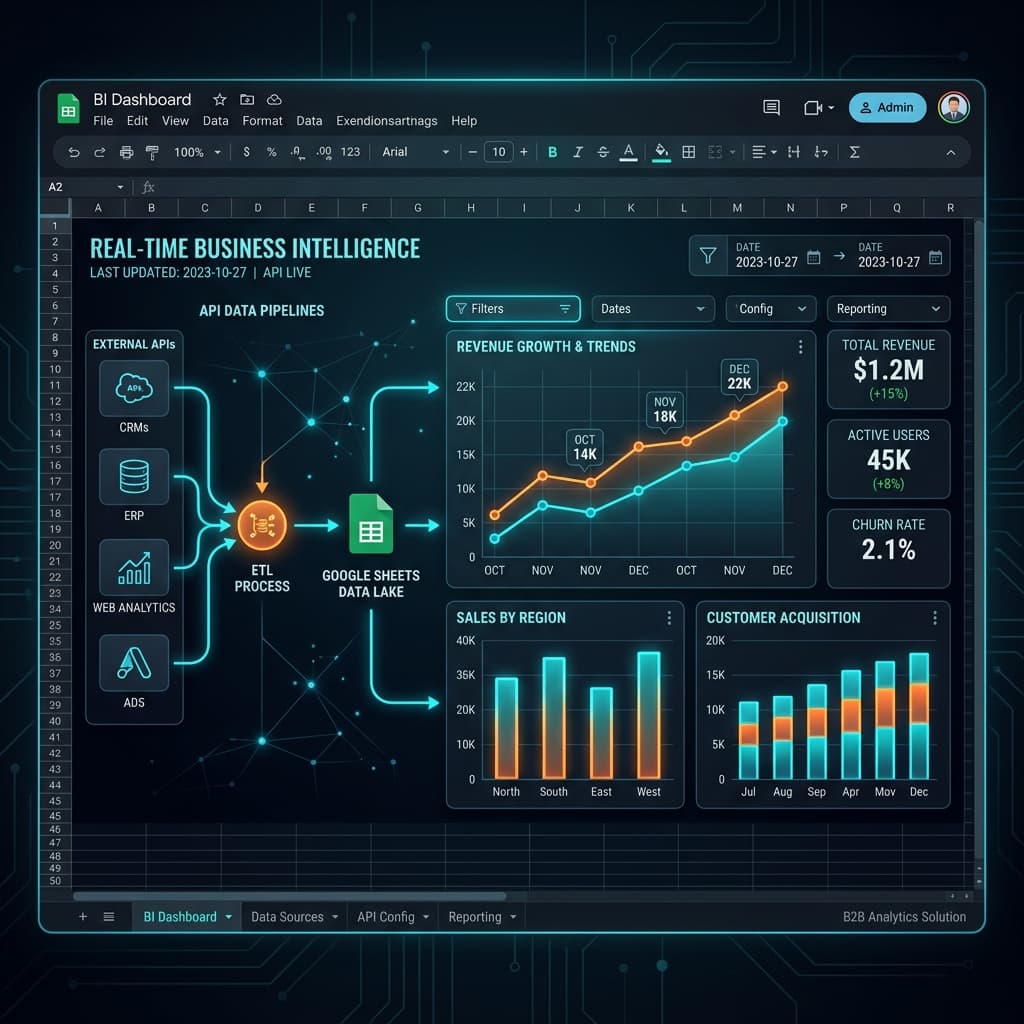
Today, we will build a Real-Time BI Dashboard inside Google Sheets, powered by Google Apps Script and native APIs.
Why Google Sheets for BI?
Google Sheets is no longer just a spreadsheet grid; it is a rapid development environment for data visualization. By combining three powerful layers, you achieve enterprise-grade BI at zero additional cost:
- The Brain (Apps Script): Automatically pulls data from external APIs (Magento, Shopify, Stripe, Google Analytics) into hidden "raw data" tabs on a schedule.
- The Muscle (BigQuery/Queries): Google Sheets' native
QUERY()andFILTER()functions can manipulate hundreds of thousands of rows of data instantly. - The Face (Slicers & Charts): Advanced charting, sparklines, and interactive "Slicers" allow executives to filter data by date, region, or SKU without breaking the underlying formulas.
Architecture of a Sheets BI Dashboard
Never put your raw data on the same tab as your charts. A professional dashboard requires a strict "Three-Tier Architecture".
Tier 1: The Raw Data Layers (Hidden Tabs)
Create tabs named [Raw] Sales, [Raw] Spend, and [Raw] Inventory. These tabs are exclusively managed by Google Apps Script. No human should ever type in these tabs.
Here is an Apps Script snippet that fetches yesterday's ad spend from an external API and appends it to the [Raw] Spend tab every night at 2:00 AM.
// DataSync.gs

function fetchDailyAdSpend() {
  const url = "https://api.your-ad-network.com/v1/spend?date=yesterday";
  const headers = { "Authorization": "Bearer YOUR_API_TOKEN" };

  try {
    const response = UrlFetchApp.fetch(url, { headers: headers });
    const data = JSON.parse(response.getContentText());

    // Output: { date: "2026-04-10", campaign: "Retargeting", spend: 450.25, impressions: 12000 }

    const sheet = SpreadsheetApp.getActiveSpreadsheet().getSheetByName("[Raw] Spend");
    sheet.appendRow([data.date, data.campaign, data.spend, data.impressions]);

  } catch (e) {
    Logger.log("Failed to sync ad spend: " + e.message);
  }
}
Tier 2: The Transformation Layer (Hidden Tabs)
Create tabs named [Calc] Pivot Tables or [Calc] Aggregations.
This is where you use the incredibly powerful QUERY function, which allows you to write SQL-like syntax directly in a cell.
For example, to group raw sales by Month and Category:
=QUERY('[Raw] Sales'!A:F, "SELECT MONTH(A), C, SUM(F) WHERE A IS NOT NULL GROUP BY MONTH(A), C LABEL SUM(F) 'Total Revenue'", 1)
These calculated tabs do the heavy lifting so your dashboard page doesn't lag.
Tier 3: The Presentation Layer (The Dashboard)
Create a tab named 📈 Executive Dashboard.
This tab has gridlines turned off, a sleek dark background color (e.g., #1e1e1e), and utilizes Slicers (Data > Add a Slicer). Slicers are interactive, floating widgets that let a user filter data (like selecting a specific month or product category) which automatically updates all charts connected to that data source.
In this layer, you use Sparklines for quick trend visualization:
=SPARKLINE(B2:B30, {"charttype","line"; "color","#00d1b2"; "linewidth",2})
Crossing the 10 Million Row Barrier
But what happens when your [Raw] Sales tab hits Google Sheets' 10-million cell limit?
That is when you connect your Google Sheet directly to Google BigQuery. Using "Connected Sheets" (Data > Data connectors > Connect to BigQuery), you can leave petabytes of data in the cloud, but continue to build Pivot Tables and Charts inside the familiar Google Sheets interface. No SQL required for the executives.
The Advantage of Agility
When a CEO asks, "Can we see our Magento average order value overlaid with our Facebook ad spend for the last 30 days?", a traditional BI team might take three weeks to build the pipeline, model the data in dbt, and publish a Looker dashboard.
With Google Sheets and Apps Script, an agile operations team can pull the APIs and visualize the answer in 45 minutes.
Further Reading
A real-time BI dashboard works best when it sits on top of a clean operational data layer. These companion posts cover the upstream and downstream pieces:
- Automated Sales Analysis with Gemini AI in Google Sheets — add AI-generated commentary to every KPI.
- Looker Studio for Magento: Graduating from Google Sheets BI — when to migrate dashboards off Sheets.
- Analyzing Magento Revenue and Orders in Google Sheets — the e-commerce KPI recipes that feed the dashboard.
- B2B Lead Scoring Autopilot with Gemini — extending the analytics layer into predictive sales signals.
- Dynamic E-Commerce Forecasting with External APIs — layering external signals on top of your historical data.
If your B2B commerce operation generates massive amounts of data but you lack the agility to visualize it quickly, MageSheet can help you architect a modular, fast, and highly cost-effective reporting infrastructure. Contact us today to learn more about our Data Engineering services!
Frequently Asked Questions
At what data volume does Google Sheets stop being viable as a BI backend?
The hard ceiling is 10 million cells per spreadsheet, but practical BI performance degrades around 500,000 rows because chart redraws and QUERY formulas get sluggish. Below that, Sheets is genuinely excellent for BI — formulas update in real time and any analyst can iterate. Past it, the pattern is Sheets for the presentation layer and BigQuery for the heavy aggregation, connected via the native Connected Sheets feature.
How does a Sheets BI dashboard compare to Looker Studio or Tableau?
Sheets is better for rapid iteration and exploratory analysis where the analyst is also the dashboard owner. Looker Studio is better when you need 20+ scheduled dashboards seen by non-technical stakeholders. Tableau is overkill unless you are doing complex visualizations across disparate enterprise systems. A good rule: if the dashboard changes more than once a week, keep it in Sheets; if it is stable and widely distributed, graduate it to Looker Studio.
Can Apps Script trigger dashboard refreshes automatically?
Yes — use time-driven triggers (every hour, every 6 hours, daily at midnight). The trigger calls a refresh function that pulls fresh data from your source (Magento, Shopify, Stripe) via their APIs, writes to a raw sheet, and your dashboard formulas recalculate. The important nuance is to write in atomic batches — never overwrite live dashboard cells mid-refresh, which causes stakeholders to see half-updated numbers during that 30-second window.
How do I layer Gemini or GPT-generated insights onto the dashboard?
Run a nightly Apps Script that exports the key KPIs as a JSON summary, sends it to Gemini 2.0 Flash or GPT-4o with a prompt like 'compare to last week, flag anomalies, produce 3 sentences', and writes the response back into a 'Narrative Insights' cell. This turns a static dashboard into a self-commenting one — leadership reads the headline automatically instead of having to interpret charts. Keep the prompt deterministic (temperature 0) so the tone is consistent day to day.
Is this dashboard secure enough to share with external stakeholders like investors?
Not by default. A raw shared Sheet exposes formulas, raw data, and edit history via version control — all things investors should not see. The production pattern is a read-only Sheet with pivoted summary tabs only, shared via an Apps Script web app that filters to non-sensitive metrics. For board-grade distribution, export to PDF on a schedule and email — investors want a static snapshot, not live access.