
Building an Omnichannel PIM System with Google Workspace and Magento
Welcome back to MageSheet's deep-dive into enterprise B2B workflows!
In the world of Omnichannel E-commerce, your product data is your most valuable asset. If you sell across Adobe Commerce (Magento 2), Amazon, a B2B wholesale portal, and physical retail POS systems, managing product descriptions, pricing, and high-resolution media assets becomes a complete nightmare.
Where does the "source of truth" live? If you update a product's weight in Magento, does it update on Amazon? If your photographer uploads new images, who resizes them and assigns them to the correct SKUs?
Large enterprises pay tens of thousands of dollars annually for dedicated Product Information Management (PIM) software like Akeneo or Salsify. But for mid-market merchants, you can build an incredibly robust, omnichannel PIM system using tools you already own: Google Sheets and Google Drive. (The sync pipeline builds directly on the architecture in our Magento 2 order sync pillar.)
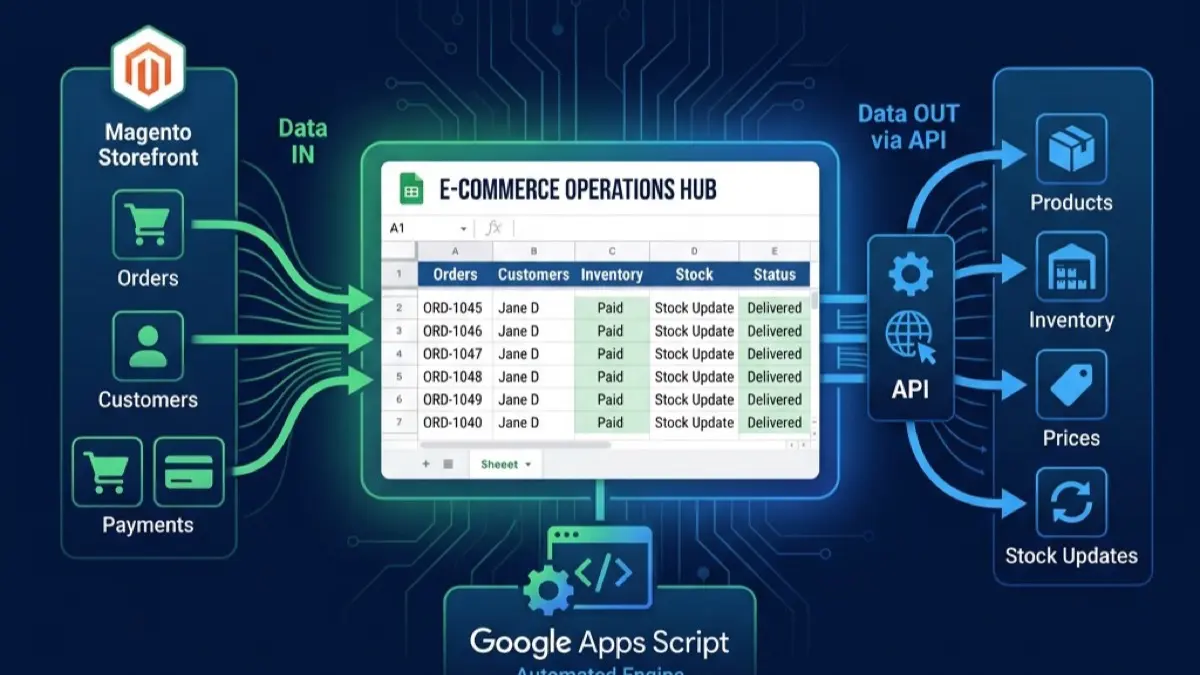
Today, we're going to architect a Centralized Data Hub that pushes metadata and images to Magento automatically.
Phase 1: Google Sheets as the Master Database
The core of your PIM is a heavily structured Google Sheet. This is your single source of truth. Magento is no longer where you create products; it is simply a "display layer" that receives data from Google Sheets.
Your "Master PIM" sheet needs columns that map to Magento's required attributes:
sku(The unique identifier)name(Product Name)description(Marketing copy)price(Base MSRP)weightcategories(Comma-separated IDs)image_drive_folder_id(Crucial for media sync!)
By using Google Sheets, your entire catalog team can collaborate in real-time, use formulas to calculate margins, and use Data Validation rules to ensure nobody enters a text string into a numeric field.
Phase 2: Google Drive as the Digital Asset Manager (DAM)
Magento's media management can be clunky. Instead of uploading images one by one through the Magento Admin, we use Google Drive.
- Create a Master Folder in Drive called
Product Hub Media. - Inside, create a sub-folder for every product named after its SKU (e.g.,
SKU-100-Media). - Your photographers drop RAW or high-res JPEGs into these Drive folders.
In your Google Sheet, you simply paste the Google Drive Folder ID into the image_drive_folder_id column for that SKU.
Phase 3: The Apps Script PIM Engine
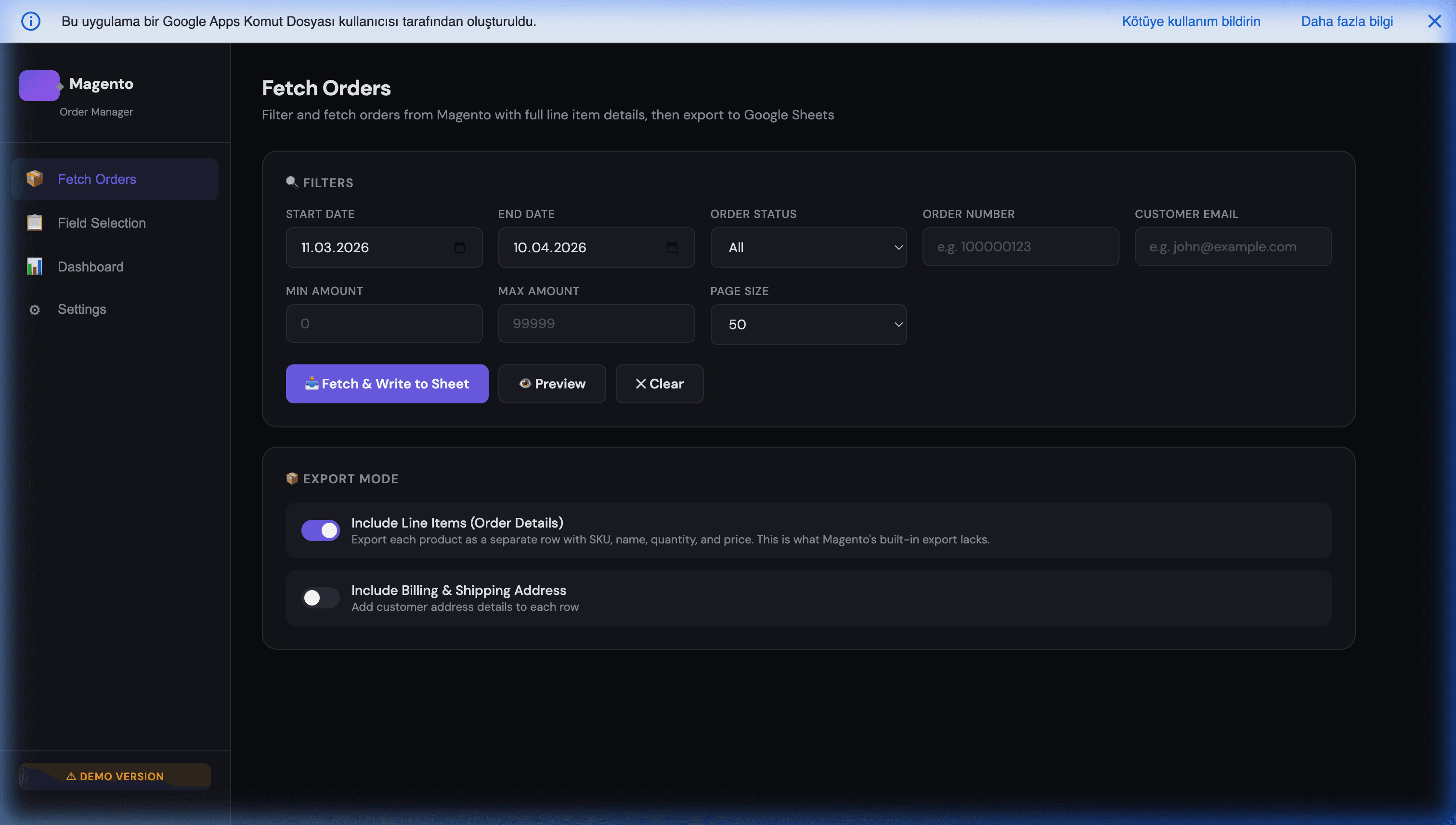
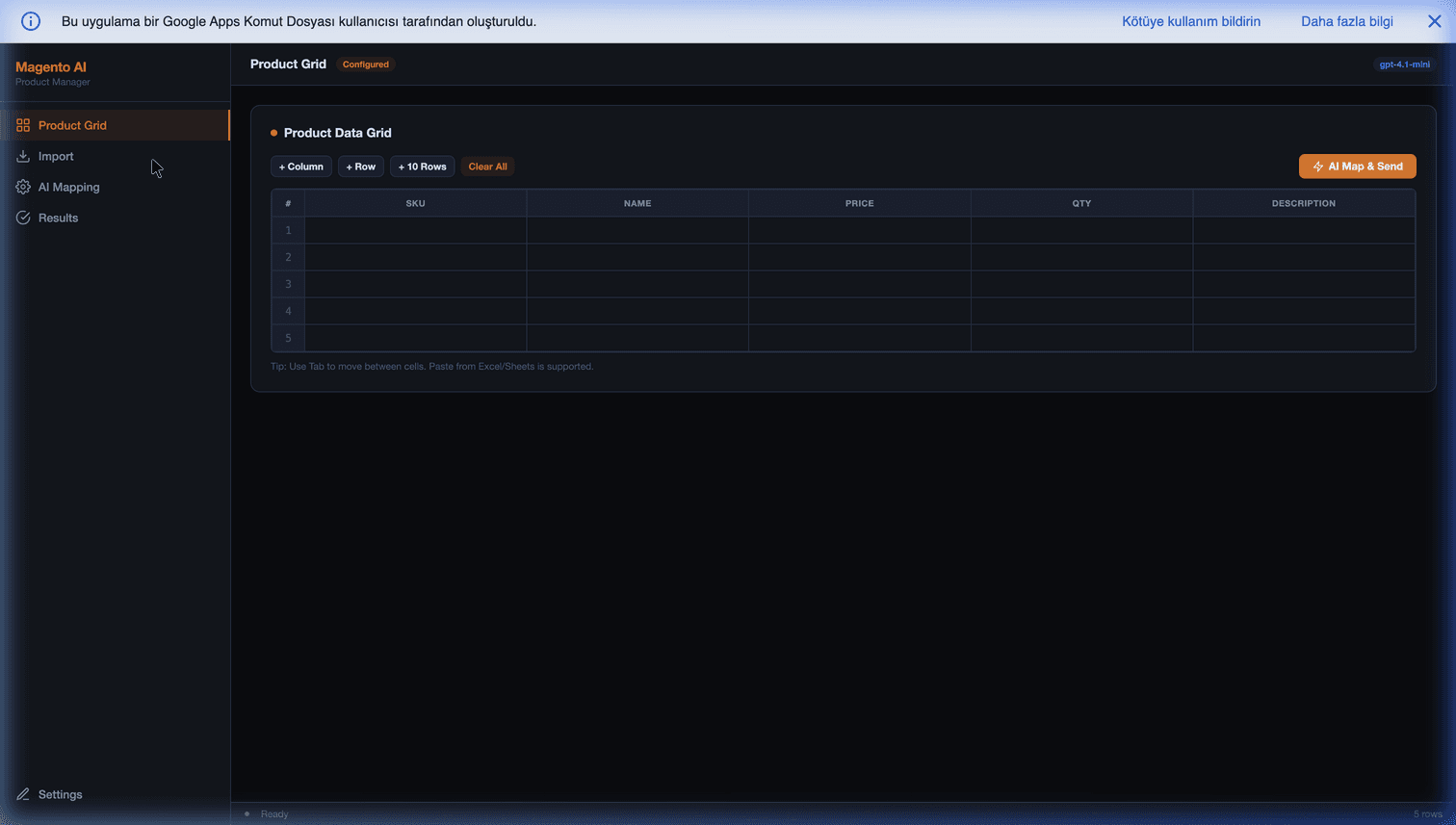
Now we bring it all together. We write a Google Apps Script that acts as the "API Gateway". This script reads the Google Sheet, fetches the images from Google Drive, converts them into base64 strings, and fires the data into Magento's REST API.
// Code.gs (Conceptual PIM Sync Script)

const MAGENTO_URL = "https://your-store.com/rest/V1/products";
const TOKEN = "your_magento_integration_token";

function syncProductToMagento(sku) {
  const sheet = SpreadsheetApp.getActiveSpreadsheet().getSheetByName("Master PIM");
  const data = sheet.getDataRange().getValues();

  // 1. Find the product in the sheet
  let productRow = null;
  for (let i = 1; i < data.length; i++) {
    if (data[i][0] === sku) {
      productRow = data[i];
      break;
    }
  }

  if (!productRow) return "Product not found in PIM";

  const driveFolderId = productRow[6]; // As defined in our schema
  let mediaGalleryEntries = [];

  // 2. Fetch Images directly from Google Drive
  if (driveFolderId) {
    const folder = DriveApp.getFolderById(driveFolderId);
    const files = folder.getFiles();
    let position = 1;

    while (files.hasNext()) {
      const file = files.next();
      // Magento requires Base64 encoded media strings
      const base64Data = Utilities.base64Encode(file.getBlob().getBytes());

      mediaGalleryEntries.push({
        "media_type": "image",
        "label": productRow[1] + " Image",
        "position": position,
        "disabled": false,
        "types": position === 1 ? ["image", "small_image", "thumbnail"] : [],
        "content": {
          "base64_encoded_data": base64Data,
          "type": file.getMimeType(),
          "name": file.getName()
        }
      });
      position++;
    }
  }

  // 3. Construct the Magento Payload
  const payload = {
    "product": {
      "sku": sku,
      "name": productRow[1],
      "price": parseFloat(productRow[3]),
      "weight": parseFloat(productRow[4]),
      "type_id": "simple",
      "attribute_set_id": 4, // Default
      "media_gallery_entries": mediaGalleryEntries
    }
  };

  // 4. Push to Magento 2
  const options = {
    method: "POST", // Or PUT if updating
    headers: {
      "Authorization": "Bearer " + TOKEN,
      "Content-Type": "application/json"
    },
    payload: JSON.stringify(payload)
  };

  try {
    const response = UrlFetchApp.fetch(MAGENTO_URL, options);
    Logger.log("Successfully synced " + sku);
  } catch (e) {
    Logger.log("Error syncing " + sku + ": " + e.toString());
  }
}
The Omnichannel Advantage
Because Google Sheets sits in the middle, it is highly extensible.
If you decide to open a Shopify Plus storefront for a secondary brand, you don't have to migrate your data out of Magento. You just write a second Apps Script function (syncProductToShopify()) that reads the exact same Google Sheet, reformats the JSON for GraphQL instead of REST, and pushes it to Shopify.
Google Workspace acts as a neutral, infinitely customizable API Gateway.
If your B2B enterprise is struggling to manage complex technical specifications, warranty PDFs, and multiple storefronts, MageSheet specializes in architecting these exact Workspace-to-Magento connections. You don't always need to buy more enterprise software; you just need to unleash the power of the tools you already have.