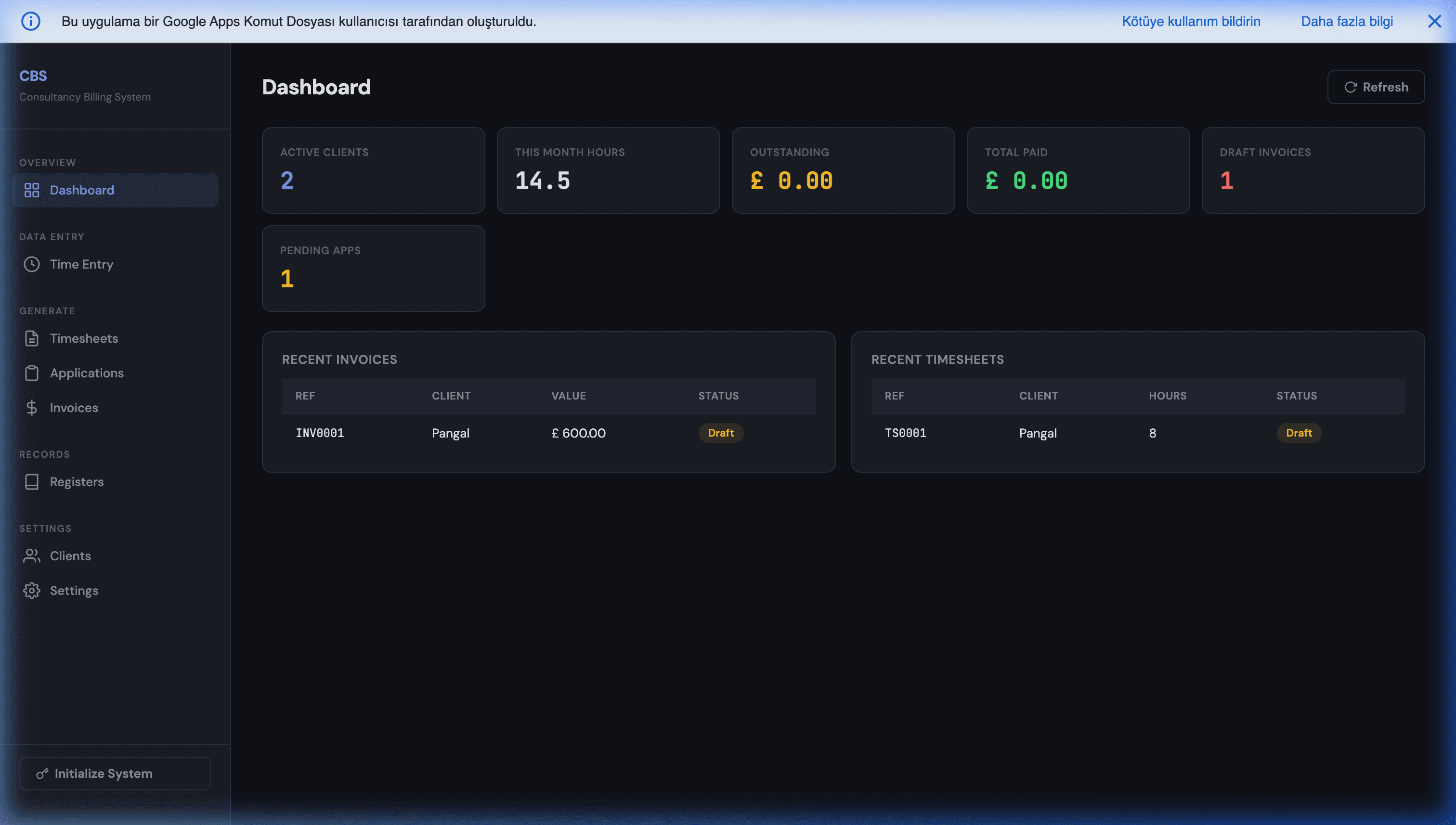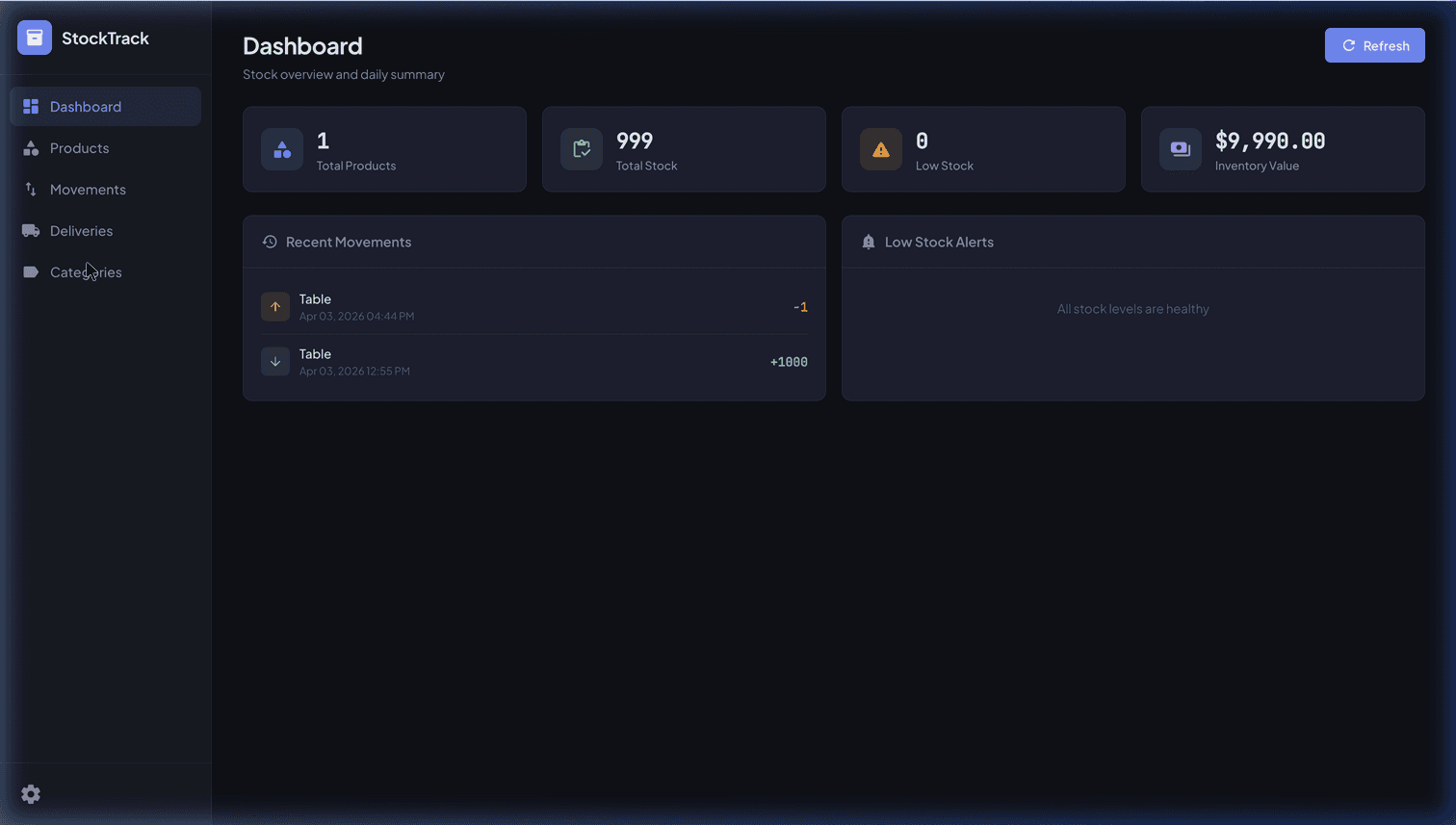

Build a Custom Frontend (Web App UI) for Google Sheets with Apps Script
Hey everyone! Welcome to MageSheet.
Today I want to kick off a brand new series, diving into one of the most under-utilized tools in the enterprise world: Google Apps Script.
Most content out there treats Apps Script like a basic macro engine for Google Sheets. You'll find plenty of tutorials showing you how to automatically color a cell or sum up a column. But today, we're going much deeper. We are going to explore how to completely step away from the spreadsheet grid and build a fully custom web application frontend backed by Google Workspace.
Learning to decouple your user interface from your data layer in Apps Script can truly level up what you're able to do. It allows you to build secure client portals, custom CRMs, and internal tools—all without the risk of an employee accidentally deleting row 53.
Why Step Away From the Spreadsheet?
If you're reading this, you probably already have some operational workflows running on Google Sheets. It's fantastic for data storage. But using it as the interface for your end-users or clients has massive drawbacks:
- Security Risks: Anyone with edit access to input data can also modify formulas, break layouts, or view others' data.
- Data Protection: You can't easily restrict a user to only see "their" specific data without creating complex, brittle permission scripts.
- Terrible UX for complex tasks: Spreadsheets are linear. A web interface allows for modal popups, multi-step forms, robust data validation, and custom brand identity.
The Solution: Apps Script HTML Service
Google Apps Script isn't just for automating cells. It can literally host web pages using the HTML Service and a special function called doGet().
When a user visits your Apps Script URL, the server runs doGet() and returns an HTML page. This means you can build intuitive interfaces using standard HTML, CSS, and vanilla JavaScript—while still quietly reading and writing to your Google Sheet in the background.
The Setup
To use Apps Script as a web server, we need two components:
Code.gsfor our backend logic.Index.htmlfor our frontend interface.
Let's start by opening a blank Google Sheet, navigating to Extensions > Apps Script, and writing our backend.
1. The Backend (Code.gs)
Here's a minimal example. We're going to explicitly tell Apps Script to serve an HTML file when someone visits our app link.
// Code.gs

function doGet() {
  // This tells Apps Script to look for a file named "Index" and render it as a webpage.
  return HtmlService.createHtmlOutputFromFile('Index')
    .setTitle('My Custom B2B Dashboard')
    .setXFrameOptionsMode(HtmlService.XFrameOptionsMode.ALLOWALL);
}

// A simple backend function our frontend can call securely
function getLatestData() {
  const sheet = SpreadsheetApp.getActiveSpreadsheet().getActiveSheet();

  // Let's grab some data from row 2 as an example
  const data = sheet.getRange("A2:C2").getValues();

  return JSON.stringify(data[0]);
}
2. The Frontend (Index.html)
Next, click the + (Plus) button in your Apps Script files section, select HTML, and name it Index.
Here is where the magic happens. We build a clean HTML structure—no grid, no confusing toolbars.
<!-- Index.html -->
<!DOCTYPE html>
<html>
  <head>
    <base target="_top">
    <style>
      body {
        font-family: 'Inter', sans-serif;
        background: #0f172a;
        color: white;
        padding: 2rem;
      }
      .card {
        background: rgba(255,255,255,0.05);
        border: 1px solid rgba(255,255,255,0.1);
        padding: 2rem;
        border-radius: 12px;
      }
      button {
        background: #f97316;
        border: none;
        padding: 10px 20px;
        color: white;
        border-radius: 6px;
        cursor: pointer;
        font-weight: bold;
      }
    </style>
  </head>
  <body>
    <div class="card">
      <h2>MageSheet Internal Portal</h2>
      <p id="data-container">Click below to fetch secure data off the spreadsheet.</p>

      <button onclick="fetchData()">Load Data</button>
    </div>

    <script>
      function fetchData() {
        // google.script.run is the bridge between our HTML and Code.gs!
        // It allows the frontend to execute your backend functions.
        google.script.run
          .withSuccessHandler(function(response) {
            document.getElementById('data-container').innerText = "Data: " + response;
          })
          .getLatestData();
      }
    </script>
  </body>
</html>
The Magic: google.script.run
Notice that <script> block at the bottom? The google.script.run API is the secret weapon of Apps Script Web Apps. It allows your frontend HTML button to seamlessly execute the getLatestData() function running securely on the Google servers.
Your users never see the underlying spreadsheet. They only see the beautiful UI you built for them, and you keep total control over what data is exposed and what can be written.
Publishing the Web App
To see this in action:
- Click the Deploy button at the top right of the editor.
- Select New deployment.
- Choose Web app.
- Set "Execute as" to Me and "Who has access" to Anyone. (This allows users to access the UI without requiring you to share the underlying Google Sheet with them!)
- Click Deploy and copy the resulting Web App URL.
Congratulations—you now have a fully functional web application!
What's Next?
In future posts, we'll cover how to bring in modern UI libraries, how to handle state and caching so you don't hit Google's quota limits, and how to trigger external REST APIs directly from this custom frontend.
Further Reading
Once you have the doGet() foundation in place, these companion posts cover the next architectural layers you will inevitably need:
- Unleashing Apps Script Webhooks — accepting data from external systems via doPost().
- Handling State and Authentication in Apps Script Apps — sessions, tokens, and route guards without a database.
- Building a Secure Dedicated Client Portal for Free — multi-tenant data isolation patterns.
- Building an Inventory Web App on Top of Google Sheets — a full worked example of an operational web app.
- B2B Lead Scoring Autopilot with Gemini AI — adding AI inference on top of the Apps Script backend.
If you don't have the developer time to build this yourself and need a custom digital transformation for your company's heavy operational workflows, reach out! We build complex Google Workspace automation solutions every week.
Frequently Asked Questions
How does an Apps Script web app compare to building the same thing in React or Next.js?
Apps Script wins on time-to-first-user for internal tools — you get authentication, data storage, and hosting for free in under 100 lines. React/Next.js wins on UI complexity, SEO, and scale past 50 concurrent users. The right mental model: use Apps Script for anything where your users are your own employees or a trusted handful of clients. Use Next.js when the frontend needs to feel like a product, not a form.
What is the real user limit for an Apps Script web app before performance falls apart?
Google's documented quotas cap a web app at 30,000 executions per day and 6 minutes per execution. In practice, 20-30 concurrent users with normal click-and-wait interaction patterns is comfortable. Past that, UI responsiveness suffers because every google.script.run call serializes through the Apps Script execution queue. For high-concurrency dashboards, cache heavily with CacheService and move reads to Cloud Run.
Can I use React, Vue, or Tailwind inside an Apps Script HTML page?
Yes — you serve them via CDN inside your Index.html. Tailwind via CDN works out of the box. React via unpkg works but you lose JSX (use htm or write React.createElement directly) unless you pre-compile. The ergonomics are rough enough that for anything non-trivial we recommend vanilla HTML + Alpine.js, which gives you 80% of React's developer experience with zero build step.
How do I deploy updates without breaking the live URL my users already have?
Use Apps Script's 'Deployment' versioning. Every 'New deployment' creates a new URL, but 'Manage deployments' lets you update the existing deployment in place — users keep the same URL and get the new code instantly. The common mistake is hitting 'New deployment' for every change, which fragments your user base across stale URLs. Keep one production deployment and update it.
Is data stored in the underlying Google Sheet encrypted?
Yes — at rest with AES-256 and in transit with TLS 1.2+, across all Google Workspace tiers. The exposure risk is at the sharing layer, not the storage layer. If you deploy with 'Execute as: Me' and keep the Sheet shared only with your own account, end users of the web app never touch the Sheet directly. That is the architectural guarantee you want.